UPDATING OLD PROJECTS WITH 3D DATA
Overview
When open the 3D Viewer on a layout you have created in an older version, or containing footprints that you have created yourself, you will see that some (or most!) of the 3D footprints are coloured red. This indicates that a 3D model is not present for a given footprint and that a simple extrusion of the silkscreen has been used to provide basic 3D capabilities.
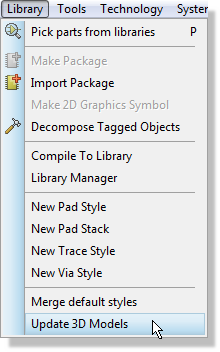
If the board has been created in an older version of the software you can automatically apply MCAD model data to the board via the ‘Update MCAD Data’ command on the Library Menu in ARES. This action will update all the packages in the layout with MCAD data from the parts in the libraries.
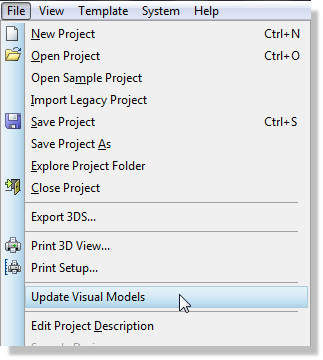
Similarly, the Update Visual Models command in the 3D Viewer will update all of the parts with Visual Models where they exist in the libraries.
Naturally, these commands affects only those parts for which 3D models exist in the libraries (all pre-supplied footprints and any custom footprints for which you have created 3D models). Parts which have no 3D data associated with them will still appear in red and you must create a 3D model for them as detailed here. Alternatively, if you are happy with the extrusion, but wish to change the colour, simply just type COLOUR=(50,50,50) and it will make it a dark grey. The Syntax is COLOUR=(R,G,B).