ASSEMBLY VARIANTS
Introduction
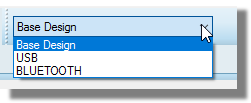
In the Design Explorer there is the ability to add Assembly Variants / Design Variants for manufacture. This allows you to have one schematic which will have components included or excluded per variant of the board based on their 'fitted' or 'not fitted' status. For example a board might be produced for a car radio where some models of the car will have bluetooth and where some will not, but the same circuit board is used for all models. You can also choose to have alternative parts in different variants provided of course that the footprint itself doesn't change.
Note that Proteus starts with one variant called BASE DESIGN. This is a variant that will include ALL components placed. Parts in the BASE DESIGN variant cannot be removed. If you need parts removed then you will need to create a new design variant.
This is explained in full in the Schematic Help
Adding a Variant
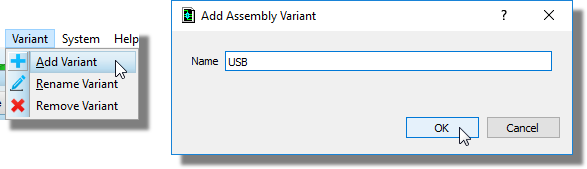
1. From the Variant menu, click on Add Variant and give the variant a name and click on OK:
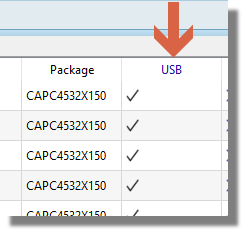
2. The variant column will now be visible:
Removing a Variant
Go to the Variant menu and click on Remove Variant. Select the variant that you wish to remove. Note that once it is deleted, you wil have to add it again from scratch should you need it back.
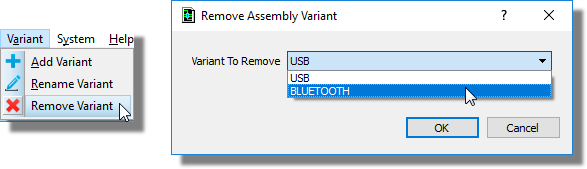
Removing components from a variant
By default, all components are added to a variant. It is up to the user to remove the non required components. To remove a component(s) from a variant, simply click on the tick to make it in to a cross and then you must click on 'Apply Changes' to finalize the change:
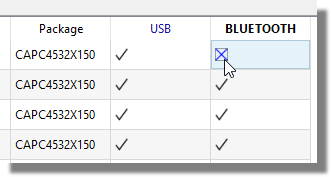
Removing a Capacitor from the Bluetooth variant but keeping it in the USB variant
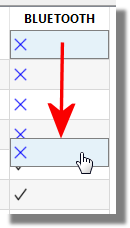
If you wish to remove multiple components from a variant. You can do so by dragging a 'cross' downwards and it will set each box to be the same as you rag over it. This works similarly to MS Excel:
When components are removed from a variant, and that variant is selected in the variants drop down box on the toolbar, their references will be greyed out indicating which components have been removed:
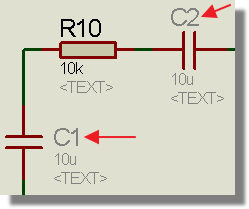
Choosing an Alternative Part for a Variant
Sometimes you might want to have alternative parts for passives between variants in a design. Provided the footprint for both is the same you can do this directly from design explorer as follows.
1) Select the variant you want to change. Note that the active variant column will highlight.
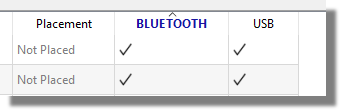
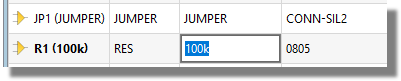
2) Change the value property of the passive. For example, 10k resistor to a 100k resistor.
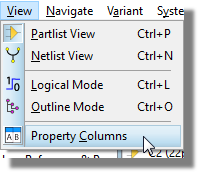
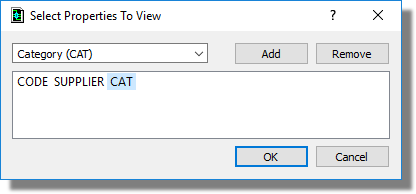
3) Select Property Columns from the View Menu and add any other properties that need to be changed (e.g. Supplier, Stock Code, Cost, ..).
4) Change the values of these properties as required.
You cannot change the PACKAGE property in a variant because it affects the PCB directly. Changes to the PACKAGE property will affect all variants of the board.
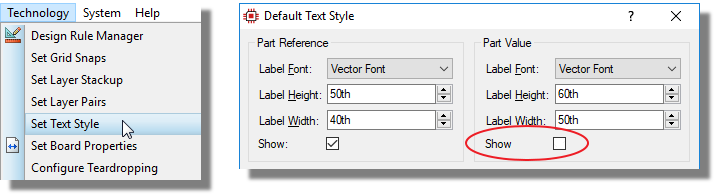
Note that the PCB silkscreen will follow the variant. This means that if you have the value field on the silkscreen it will change depending on the variant. If you need the silkscreen to be variant neutral then simply hide the silk text for the package value.