KEYBOARD SHORTCUTS
Configuration
Proteus provides an interface for you to map the keyboard to a command set. This allows you to ‘bring out’ the functionality you commonly use according to personal preference. The dialogue is opened with the Set Keyboard Mapping command and acts on whichever module is currently active, so each module carries its own keyboard map. Context Sensitive Help is available for all fields within the configuration dialogue box.
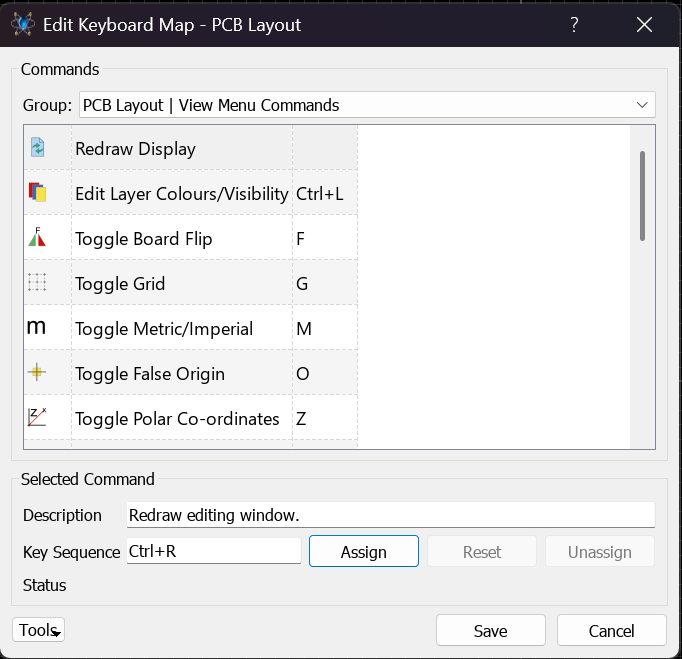
The Edit Keyboard Map dialogue
Assigning a Shortcut
Pick the command you want from the Commands list, narrowing the list with the Group filter if it helps, then type the accelerator you want into the Key Sequence field of the Selected Command group and click Assign. Unassign removes the shortcut from the selected command, leaving it with no accelerator at all. Reset restores just the selected command to its default shortcut, where it has one.
Notes :
- Accelerators can use any combination of CTRL, SHIFT and ALT keys. For example, CTRL+X, CTRL+ALT+T,SHIFT+CTRL+1, etc.
- Two reset controls are provided. Reset, beside the Key Sequence field, restores only the selected command to its default. Reset to Defaults, on the Tools button, reloads all the Proteus standard shortcuts and overwrites the whole of the configuration you currently had.
- Some European keyboards have an ALT GR key (normally found directly to the right of the space bar). Where present this translates to be CTRL+SHIFT for the purposes of assigning keyboard shortcuts.
- If you assign an ALT accelerator that is used as a menu accelerator then you will no longer be able to accelerate the menu from the shortcut. For example, ALT+T by default expands the Tools Menu within the layout module. If you assign ALT+T to the Tidy command then you would have to access the Tools Menu using the mouse.
- Some commands are locked and their keyboard shortcuts cannot be assigned or re-assigned to another command. When you select one of these the Status panel reports that the command is locked and cannot be changed (with a separate wording for locked global commands) and the Assign button remains disabled.
- When the NUM LOCK is on the keys 0-9 on the numeric keypad are distinct from the 0-9 keys on the main keyboard. For example, you could assign CTRL+0 up to CTRL+9 on the main keyboard as shortcuts to the Most Recently Used file list (MRU list) and on the numeric keypad you can assign CTRL+NUM-0 up to CTRL+NUM-9 for different commands.
- When the NUM LOCK is off keys 0-9 on the numeric keypad action their secondary functions and these functions are considered identical to those on the main keypad. The key for the number 5 on the numeric keypad has no secondary function when NUM LOCK is off.
- You can save your custom keyboard configuration with the Export to File command on the Tools button. This allows you, for example, to port your keyboard configuration to another computer. Similarly, Import from File on the same button reloads a custom keyboard configuration that has previously been saved.
- Keyboard maps are saved as Proteus Key Map (.pkm) files. A map belongs to the module it was exported from, so a file saved out of the layout module cannot be imported into the schematic module and vice versa.