THE SYMBOL LIBRARY
Overview
A symbol is a group of graphic objects which are treated as a single object. For instance, using 4 lines and two arcs you can form an AND gate symbol.
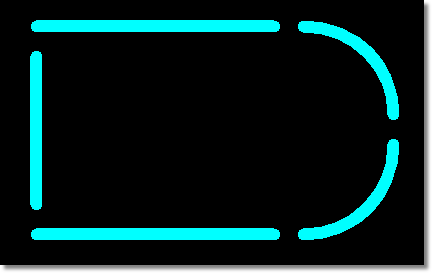
An AND gate symbol formed from four lines and two arcs
Making a Symbol
A symbol is created by tagging the objects you wish to form it and then invoking the Make 2D Graphics Symbol command on the Library menu, or from the right-click menu of the selection. Layers are ignored for this purpose.
A form appears asking for the new symbol name and for the library to store it in. Only writable symbol libraries are offered, and if you have none the command reports the fact and stops, so create one in Library Manager first. If the chosen library already holds a symbol of that name you are asked to confirm before it is replaced; answer no and the new symbol is abandoned. Once stored, the symbol is added to the Object Selector and is available for immediate placement.
Proteus quite happily allows a symbol to contain other symbols and/or other graphic objects. This allows you to make, for instance, a NAND gate out of the previously defined AND gate plus a circle.
The Placement Reference
The placement reference for a symbol may be determined by placing an ORIGIN marker before you make it. Markers are placed in 2D Graphics Markers Mode. If there is no ORIGIN marker the reference is taken as the centre of the bounding box of the symbol's graphics. Note that this differs from a package, which falls back to the position of the first pin placed.
Sharing Symbols with the Schematic
Schematic and Layout symbols are essentially exchangeable, and all symbol libraries have the type 'PROTEUS SYMBOL LIBRARY'. However, the layout does not support all of the drawing appearance features of the schematic, so correct rendering of schematic symbols with complex fill patterns is not guaranteed, especially for CADCAM output where we can say with some certainty that it will not work!
See Also: