FIELD CODES
Introduction
Field codes in Proteus are placeholders for common information that may change between projects or between output generation but has the same meaning regardless. Modified Date is an obvious example.
The benefit of setting up output paths with field codes is twofold:
- Re-usability. Set up once and the same structure holds for future projects.
- Flexibility. More control over output destinations and naming conventions.
A field code is written as the code name between double braces, for example {{FILESTEM}}. You can type a code directly, or right click inside a supporting edit box and use the Insert Field command to pick one from a list.
Field codes are available in the Folder and Filestem fields of the CADCAM, IDF, ODB++ and Pick and Place output forms, and in the folder, filestem and sub-folder fields of the Output Job Manager.
Available Field Codes
The following codes are available. The name shown is the name that appears on the Insert Field menu; the code in monospace is what appears in the edit box.
Title {{TITLE}}
The title of the project (not the project name) as set in Design Menu > Edit Design Properties in the Schematic module.
Assigned Board {{BOARD}}
The assigned board for output; relevant only for multi-board projects.
Author {{AUTHOR}}
The author of the project as set in Design Menu > Edit Design Properties in the Schematic module.
Document No. {{DOCNO}}
The document number of the project as set in Design Menu > Edit Design Properties in the Schematic module.
Revision {{REV}}
The revision number of the project as set in Design Menu > Edit Design Properties in the Schematic module.
Created Date (short) {{WS_CDATE}} and Created Date (long) {{WL_CDATE}}
The date the project was created, in short or long form.
Modified Date (short) {{WS_MDATE}} and Modified Date (long) {{WL_MDATE}}
The date the project was last modified, in short or long form.
Created Time {{CTIME}}
The time the project was created. 24 hour notation with colon separator.
Modified Time {{MTIME}}
The time the project was last modified. 24 hour notation with colon separator.
Project Full Path {{PATHNAME}}
The directory on disk and the filename of the project.
Project File Name {{FILENAME}}
The file name of the project, including its extension.
Project File Name stem {{FILESTEM}}
The file name of the project without its extension. This is normally the code you want when you are building an output filestem, since the resulting files should not carry the project extension.
Project Directory {{DIRECTORY}}
The directory on disk where the project file is saved.
Design Variant {{VARIANT}}
The currently selected design variant.
Separators
You will often want to join two field codes with a separator, but only when the second one actually has a value. A revision suffix, for example, should not leave a trailing underscore on a project that has no revision number set.
To achieve this, put the separator characters inside the braces, either before or after the code name. Spaces, hyphens and underscores may be used, and you may use a run of them rather than a single character. If the property is empty, the separators are dropped along with the code.
So {{FILESTEM}}{{_REV}} gives MyDesign_2 when the revision is 2 and simply MyDesign when the revision is blank. A suffix separator behaves in exactly the same way, so {{BOARD_}}{{FILESTEM}} is also valid.
A separator typed outside the braces, as in {{FILESTEM}}_{{REV}}, is ordinary text and is always present, so an empty revision leaves a trailing underscore on the filename.
Malformed Field Codes
Proteus checks the expression before it generates any output, and reports the problem rather than producing a strangely named file. Three cases are reported:
- The number of opening and closing braces does not match.
- An empty field, that is {{}}, has been entered.
- The code name is not one of the codes listed above. The message names the code it could not resolve, which is usually enough to spot a typing error.
Examples
To set an output fileset with a suffix of the revision number:
- If the filestem already has {{FILESTEM}} then right click, insert field, and select Revision. Type an underscore or a dash immediately after the opening braces of the new field so that the separator disappears when there is no revision number.
- No change is needed to the folder contents. By default this will be {{DIRECTORY}}.
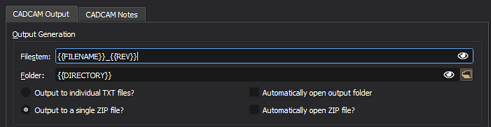
Suffix the filestem with the revision number.
You can hover the mouse over the field codes to see the actual folder and filestem for the current output. Alternatively, you can toggle the eye on the right hand side to switch the display between the field code expression and the resolved (non-editable) text. The eye does not fill anything in; it only changes what you are looking at.
To put all the Gerber files in a subfolder:
Add a backslash to the end of the {{DIRECTORY}} folder entry and then type Output.
Optionally, add another backslash and a further sub-directory.
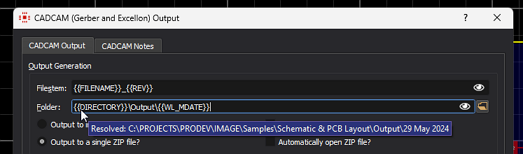
Specifying a folder structure for Gerber Files to all go into an Output folder and to go into sub-folders based on modified date.
See Also: