MULTI-BOARD PROJECT NOTES
Overview
When a project contains more than one board the question arises about the scope of all of the reports generated in Project Notes. We've taken the decision that all notes will start life as being board specific (not project global) and that some notes must always remain board specific.
When you create a new Project Note the current board is listed at the bottom right, and by default, when you select a specific template, the note is marked as board specific.
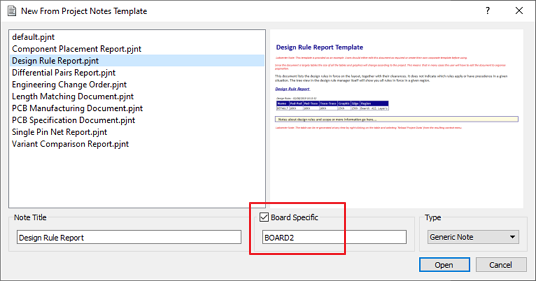
For those reports forced to be board specific all configuration options will be disabled.
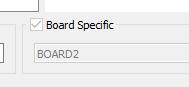
It's important to select your board of interest from the global combo box before creating any Project Notes as most often the contents of the note will be locked to the board.
See Also:
Board Specific Reports
A board specific report is one which applies to a single board and can only apply to a single board. PCB Manufacturing Notes is a good example of this - the contents of the board (stackup / drill passes, artwork etc.) are board specific and can be set to accompany Gerber output files for the board. As such, this note should never contain information about another board.
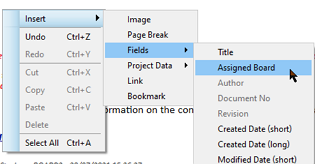
Since it's common to generate the reports for each board in the project it's often useful to include the Assigned Board Field Code to the title of reports of this type. To do this just right click where you want to add and insert field code Assigned Board from the context menu.
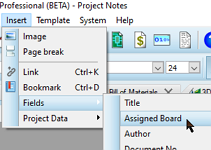
You can also get there from the field codes icon on the toolbar at the top.
Note that 'Board Not Set' means that the board has not bean renamed from the default name in the Design Explorer.
Making a Note Project Global
Some reports are defaulted board specific but could be changed to include info about other boards. For example, the Engineering Change Order report. To do this we must first uncheck the board specific checkbox when creating the note from template.
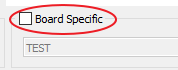
Once this is done the note is not bound to a given board. This will allow you to add data objects from multiple boards in the project to the note.
Note that you cannot use the 'Assigned Board' field code with a Project Global report since there is no assigned board. If you add the field code it will simply report 'Board not Set'
For example, to add the design rule info from all the boards you would:
- Select the first board
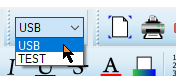
- Insert the design rule data
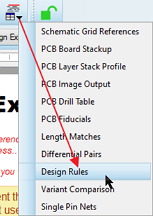
- Switch to the second board
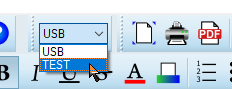
- Insert the design rule data
- Repeat for any other boards.
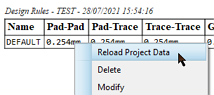
Remember that you can reload data from a table by the right click context menu.
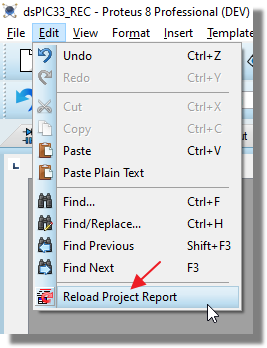
However, to reload the entire report (all of the data objects across multiple boards) you must use the Reload Project Report command on the Edit Menu.
Assigning a Board to a Global Note
The vast majority of the time you'll decide and assign the board to the note on the main dialogue when you select a template.
You can however assign a board to a project global note at any time as follows:
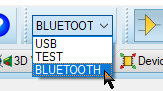
1) Select the board you want to assign to from the Board Selection drop down box
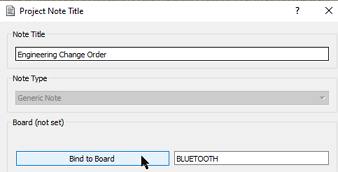
2) Launch the Edit Note command on the File Menu and bind to that board
3) Add the 'Assigned Board' field code to the note title