VARIANT COMPARISON REPORT
Introduction
When you have multiple variants of a project it is often useful to list the differences between the variant and the base design. The variant comparison report does precisely that and can be launched from the Project Notes module.
If you are starting the Project Notes module you can select it from the list of available templates.
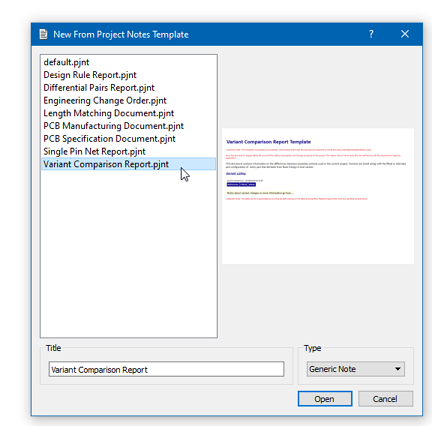
Creating a Variant Comparison Report from Project Notes
The report can equally be inserted into a note you already have open, from the Project Data menu; inserting, reloading and locking report tables are covered in one place in the Project Notes manual.
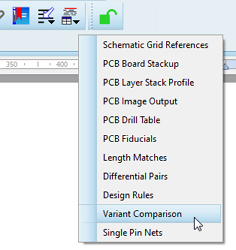
Variant Comparison chosen from the Project Data menu for insertion into a custom report
Project Notes : Supplied Reports
Report Data
The report carries one section per variant, headed with the word Variant, a colon and the name of the variant. The base design is not given a section of its own, since it is the thing everything else is being compared against. Within each section the report lists the components which differ from the base design, either because they are not fitted in that variant or because they carry a value or a property specific to it.
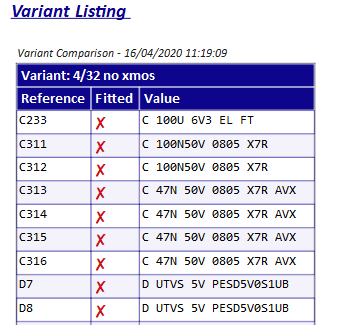
Example variant report showing not fitted parts in one design variant
Every section has the same three columns to start with:
Reference
The component reference. A multi-element part is listed once, under its reference, rather than once per element.
Fitted
A tick if the part is fitted in this variant and a cross if it is not. A part which appears with a tick is in the list because one of its properties differs, not because it has been excluded.
Value
The value the part takes in this variant, which is not necessarily the value on the schematic in front of you.
Further columns are then added automatically, one for each property that needs one. The properties managed by the library system, which as supplied are Manufacturer, Stock Code, ROHS Compliant and Supplier, always get a column, and so does any other property which has been given a variant specific value anywhere in the design. So a project in which one variant substitutes a different manufacturer's part reports the manufacturer alongside the value, without your having to ask for it.
The report covers the current board only. On a multi-board project you will need one report per board, each in a note bound to that board.
Reloading the Report
Reports are time stamped at the top and are static unless manually reloaded. First, check that the project note is unlocked, then right click on the data table and choose Reload Project Data.
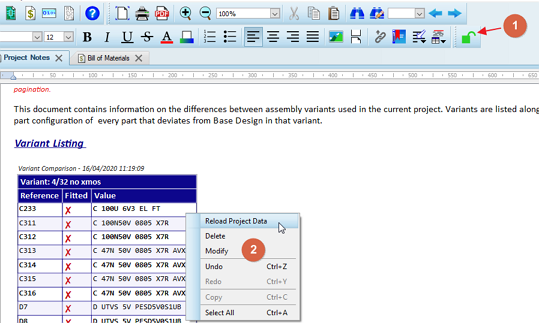
Reloading the data in the variant table
Where a note carries several report tables, the Reload Project Report button on the toolbar brings all of them up to date in one click.
See Also: