IMPORTING STEP or IGES MODELS
Overview
STEP Files and, to a lesser extent, IGES files are commonly used in data exchange for mechanical CAD packages such as Solidworks. Proteus supports both the import of individual STEP / IGES models for packages and also the output of the Proteus layout as a STEP assembly.
Importing a STEP File
1) Download the STEP file from a manufacturers website or a content website such as www.3dcontentcentral.com.
2) Move the STEP File into the MCAD directory of your Proteus installation. By default, this will be
C:\ProgramData\Labcenter Electronics\Proteus 8 Professional\MCAD\
3) Select Package mode, pick the package you want from the libraries and place on an empty area of the editing window.
4) Tag the part and invoke Make Package from the Library Menu.
5) From the 3D mechanical model tab, select the MCAD File option and browse to the STEP file.
6) Use the offset and rotation commands to position the part correctly.
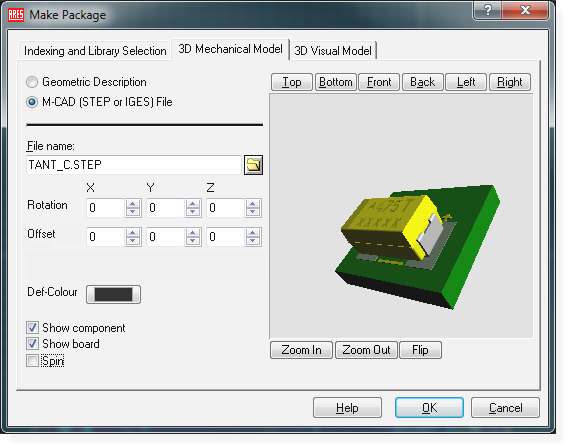
An example of a STEP File
Note that STEP files can be extremely large and often needlessly so. If you have options for a STEP file it is worth thinking about filesize because it will have a significant impact on performance. You can also use Labcenter geometric models for large pin count parts - these will still export as STEP but will render far more efficiently.