ESP8266 Programming : Troubleshooting
Problems with WeMOS D1 Programming
See Also:
Cannot get a COM Port
If you have opened the NODEMCU Flasher and no COM port appears, this is most likely to be that you do not have the CH340 drivers installed. You can download the drivers from our website: https://www.labcenter.com/downloads/ Extract them to a folder on your hard drive, and in the Device manager, Right click on the Unknown device and select Update Driver. Select Install driver from specific location and navigate to the saved driver files. Click next to install the drivers.
Erasing the flash
If you Flash the WeMOS and the Wifi Modules is not visable, it is likely that there was data already in the Flash. This will need deleting before you can reflash the WeMOS.
Download the Blank_1MB.BIN file from our website: https://www.labcenter.com/downloads/
Use the NODEMCU Flasher and open the Config tab. Enter in the Bin file in to 4 pages to wipe ALL the data. Use the following Addresses:
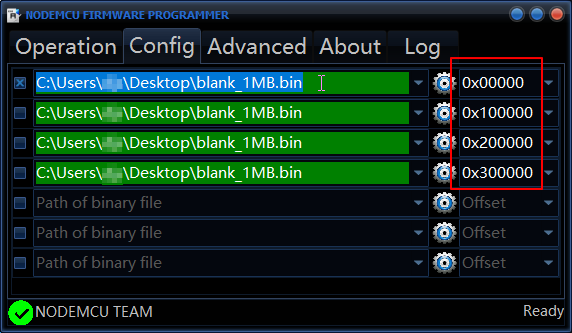
Note that you can only select 1 row to be flashed at any one time, you start at the top and then in the Operation tab Flash the first page, then uncheck page 0 and check page 1, then flash that. Do the same for page 2 and 3.
Once that is complete the Flash is empty, now you can upload the Labcenter BIN file to the flash (C:\ProgramData\Labcenter Electronics\Proteus 8 Professional\VSM Studio\drivers\arduino\Vfp8266\firmware)
Programming Error 1
If you get the following:
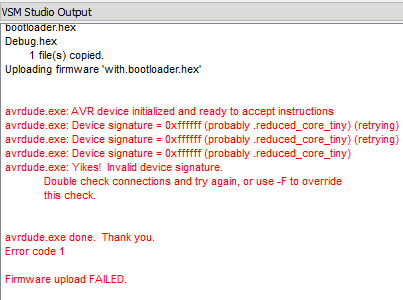
It is likely that the wiring on the breadboard is incorrect.
Playkit or WeMOS Programming
Programming Error 2
If you get the Following:
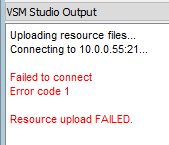
1. Check that the hardware is plugged in.
2. Check that the Settings in Project menu > Project Settings are set correctly.
3. Try rebuilding your projects and uploading again.
Programming Error 3
Check the programming options to make sure ESP8266 option is selected, Not AVRDUDE:
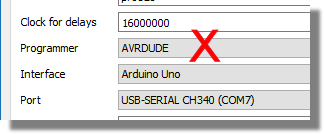
Playkit Troubleshooting
Resetting the Playkit
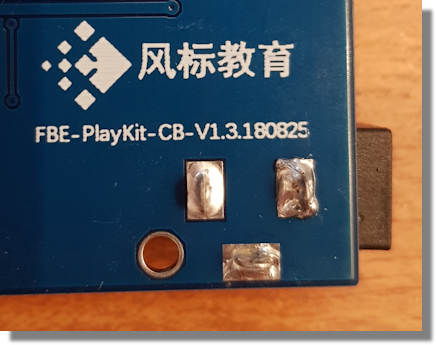
If there are Wifi changes or password mistakes or general problems it can be useful to reset the Playkit hardware. Do this by holding down the AP RST button whilst pressing the 8266 RST button. This will clear the network information and allow you to start the process again. This process is for the V1.3.180625 version of the Playkit (on the reverse of the board) and may change in later versions.
Proteus not recognising Playkit in host option:
1) Check LED on ESP8266. If it is flashing repeat the connection to network operation.
2) Check Playkit and PC are connected to the same network.
Playkit is recognised but fails to upload resources
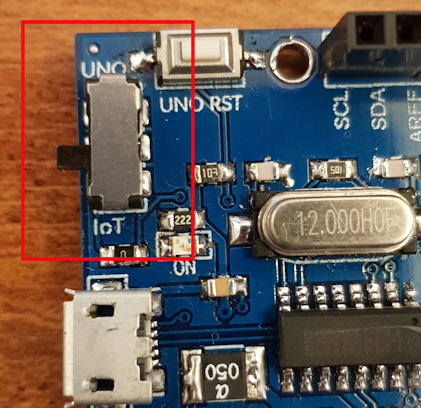
Make sure the Playkit is switched to IoT instead of UNO. When the switch is set to IoT there is a programming path through to the ESP8266 which allows the resources (notably the front panel graphics) to be stored. When set to Uno the playkit reverts to standard header configuration for Arduino Uno.