GRAPHICS FILE GENERATION
Overview
As well as printing directly to Windows print devices, Proteus can generate output for use by other graphics applications. All of these exports live on the Output menu, under Output > Export Graphics, and the submenu offers seven formats:
- Export Adobe PDF File
- Export Bitmap
- Export SVG File
- Export DXF File
- Export Metafile
- Export Encapsulated Postscript
- Export Vector File
Each command opens a dialogue form on which you choose the layers to be output and, for most formats, the plot mode (Artwork, Assembly Plot, Drill or Testpoint Plot), the scaling, the rotation and the reflection. Context sensitive help is provided for the fields on all of these dialogue forms.
Bitmap Generation
The Export Bitmap command creates a bitmap of the board and places it either on the clipboard or in a disk file. A bitmap has a fixed resolution, so choose a size large enough for the use you have in mind before you export it.
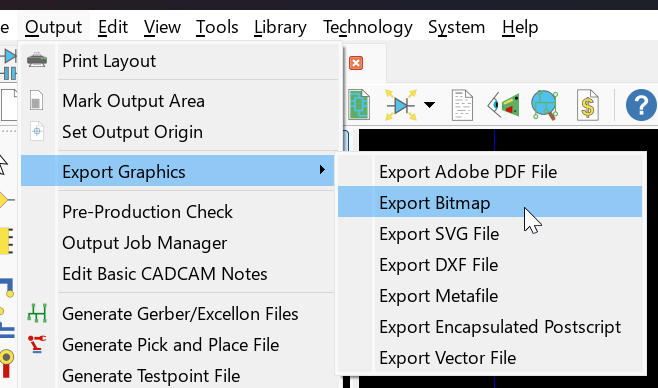
Exporting a Bitmap
Metafile Generation
The Export Metafile command creates a Windows Metafile of the board and places it either on the clipboard or in a disk file. The metafile format has the advantage of being truly scalable where a bitmap is not, which makes it a good choice for pasting a layout into a word processor or a drawing package.
PDF Generation
PDF files are widely recognised and adopted as a standard format for file sharing. The Export Adobe PDF File command outputs a PDF of the layout, on which you can select layers, specify overlaid or separate pages per layer and choose either colour or monochrome output.
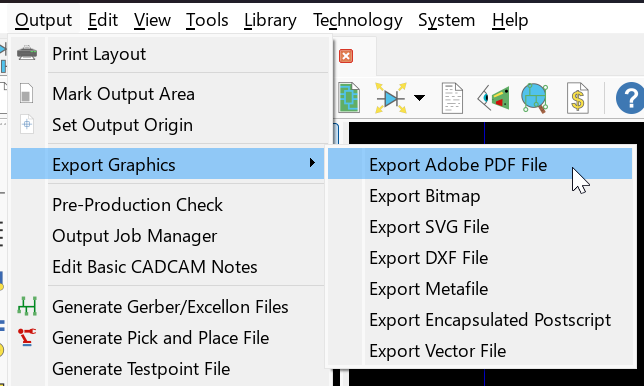
Exporting PDF format
SVG Generation
Scalable Vector Graphics (SVG) is an XML based vector image format, so an SVG export scales without loss of quality and can be edited in any vector drawing package or opened directly in a web browser.
The Export SVG File command offers the four plot modes alongside a set of colour options: Colour Output? switches between colour and monochrome, Invert Colours? reverses them, Background Colour sets the colour behind the artwork, and Separate Pages? writes each layer to its own page. Launch Viewer? opens the finished file in your system viewer.
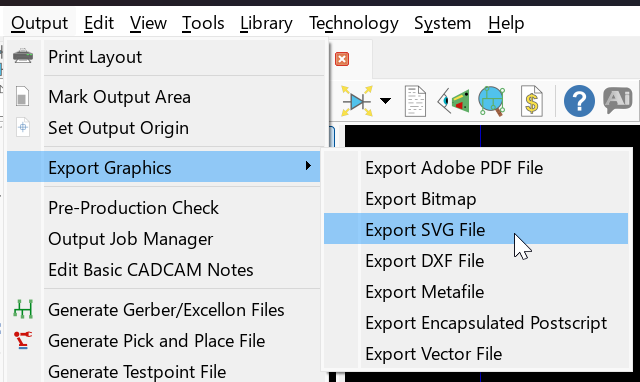
Exporting SVG Format
DXF File Generation
DXF is the usual route for passing a layout to a mechanical CAD application, for example when the board outline and mounting holes need to be checked against an enclosure. The file is generated by a Labcenter output formatter rather than by Windows.
The Fill Mode option on the dialogue form determines how copper zones are represented, and is worth setting deliberately because DXF support for hatching varies between applications. Outlines Only exports just the zone boundary; Tiled and Solid use DXF hatches; and Raster simulates the filled area with a set of lines, which produces larger files but is the most widely compatible.
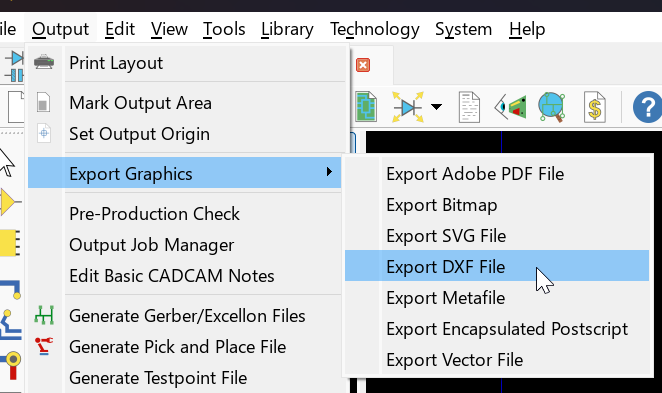
Exporting DXF format
EPS Generation
The Export Encapsulated Postscript command writes the layout as an EPS file. It shares its dialogue form with the DXF export, so the same plot modes, layer selection, scaling and rotation options apply. EPS is the format to use where artwork is being placed into a professional page layout or sent to a bureau that works in Postscript.
Vector File Generation
The Export Vector File command writes the layout as a pen plotter vector file. The Device field selects the format: HPGL, HPGL (CTO), which uses a centre origin rather than a top left one, Hi-80 for most Epson plotters and DPML for the Houston plotter series. This is the route to use for a pen plotter or a vinyl cutter, which are driven from a vector file rather than as ordinary Windows print devices.
See Also: