TEMPLATES
Overview
Templates allow you to create and re-use formatted content in different projects. It is ideal if you want to use Project Notes for a particular purpose (e.g. revision history) as you can set up the template and then re-initialise from it when you start a new Proteus project. Templates are also used to provide a base set of reports that could prove useful during PCB Design - you can of course add to or modify these to suit.
See Also:
Loading Templates
When you first open Project Notes you will be presented with a Template dialogue that lists all available templates along with a preview of their contents on the right hand side. Default is a blank template with no text and the others show example usage of Project Notes.
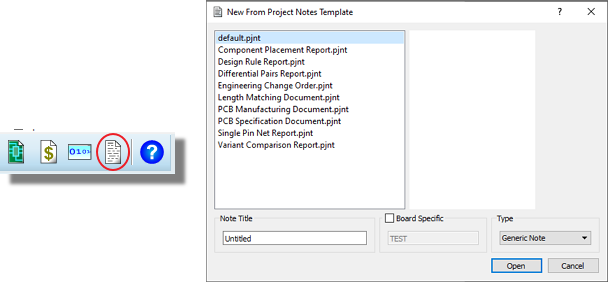
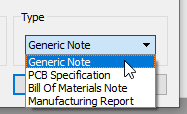
When you select the Template the title and Project Notes type will be shown at the bottom. You can change these if you want, although it's unlikely to be necessary.
Either double click on the template you want or select it and click on the OK button to load the template into Project Notes.
You can also load styles only (not content) from either another Template or from Factory defaults via the Template Menu.
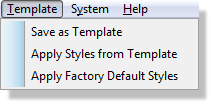
Mostly, this is useful if you don't want to re-use the fonts and styles that you have created in one template (e.g. Revision History) in a different template (e.g. Purchasing Guidelines).
Saving or Creating Templates
Creating a template amounts to saving Project Notes as a template when it contains re-usable styles and information. First, check the title and type from the command on the File Menu.

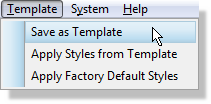
Next, use the Save as Template command to store the document and styles into your Templates directory.
For example, you might want to create a fixed procedure for recording a revision to the PCB so you type up some headings for the various stages and then save it as a Template. This is exactly what we did with the Engineering Change Order example template supplied with the software:
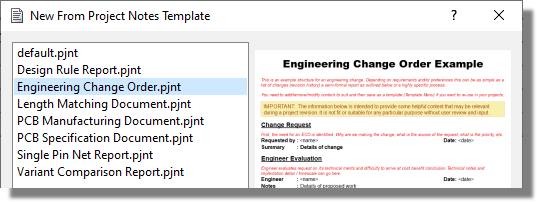
When you save a template you save both the Project Notes content at that time and also the configuration of all of the styles at that point. The latter allows you to change fonts to your liking and then save a blank template (override default) for future projects.
Storage and Filing
Project Notes templates are stored on disk in the Templates directory of your Proteus installation with a PJNT extension. If you want to share the templates between users these files either need copying to other machines or the Templates directory needs to be moved and shared on a network drive. You can do this via the Global Settings command on the System menu.
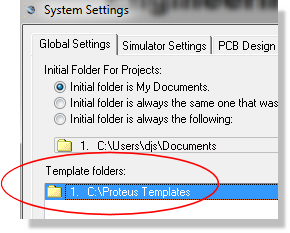
Be careful when changing these settings as your schematic, layout and BOM templates are also stored in this directory.
Note that the actual Project Notes document for a Proteus Project is stored inside the Proteus file (*.PDSPRJ). It is only the Project Notes Templates that are stored externally on disk.