GENERAL POINTS
Library Discipline
The Library folder as installed with Proteus contains two symbol libraries and over 140 device libraries as well as various essential utility files. The following extensions are used:
- Library Files (.LIB)
- Index Files (.IDX). These are generated by Proteus as it reads the libraries; they are not part of the installation.
- 3D Visual Model Files (.3DS) and 3D Visual Model Libraries (.VML). A .VML file holds several named models, and the package selects the one it needs by name.
- ASCII Data Import Files (.ADI)
- Master Style File (.STY)
- Configuration Files (.INI)
Mechanical models are held separately. The Path to the folder for the 3D/MCAD models field is on the System Settings dialogue form > PCB Settings tab, and points at the folder that holds the STEP and IGES models used for board visualisation and MCAD export, and that folder is not part of the Library folder.
The path to the Library folder is set by the installer to wherever you have installed. 'Me Only' install will be in the %LOCALAPPDATA%\Labcenter Electronics\Protesu x Professional\ or 'All Users' will be C:\ProgramData\Labcenter Electronics\Proteus x Professional\. You can change or add another library path from inside the Proteus application, using the System Menu > System Settings command.
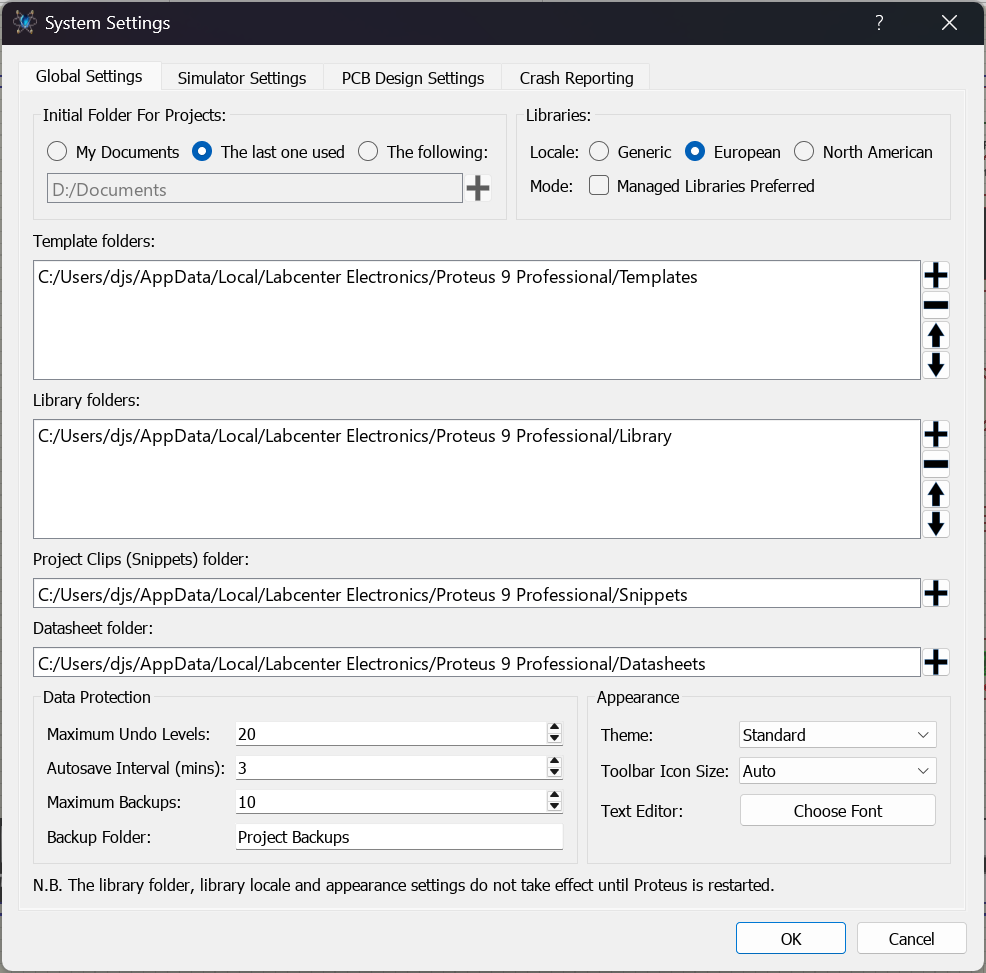
The System Settings dialogue form, on which the library folders are specified
The library folder and the library locale do not take effect until Proteus is restarted. The dialogue form itself carries the same reminder at the foot of the Global Settings page.
Two further settings in the Libraries group of the same dialogue form affect what you see when you pick a part:
- Locale, which offers Generic, European and North American. This determines which set of schematic symbols is preferred for parts that are drawn differently in different territories, the logic gates being the obvious case.
- Mode, which carries the Managed Libraries Preferred checkbox. With this set, the pick forms default to showing only managed parts, web import is disabled and local property changes are restricted. See Managed Libraries for what this means in practice.
We would recommend that you not move your Library folder, or add another one, unless you need to, and that before making any changes you read the following potential issues and requirements carefully:
- Three libraries, namely USERDVC.LIB, USERPKG.LIB and USERSYM.LIB are installed read/write and intended for users to create their own components, footprints and symbols. You can create additional libraries if need be through the Library Manager. All other installed libraries are installed as read only and contain Labcenter supplied library parts. If you make Labcenter libraries writable then you will lose changes to those libraries when you update your software: Labcenter libraries are overwritten by the installer so that we can continue to add support for new parts.
- If you move your library folder onto a network then it is vital that the folder is fully read/write to all users. If Proteus cannot write the library folder it simply will not work.
- If you elect to have more than one library folder, one local and one on the network for example, then they must be completely de-duped. Two libraries or files with the same name in different places will at best result in confusion as nobody will know which one was loaded.
- Under no circumstances should you remove items from SYSTEM.LIB.
The Library Browser
Each part in the device libraries is assigned a Category, a Sub-Category and a textual Description. This information is displayed by the Library Browser and makes it very easy to search the libraries for the parts you require. The library browser can be launched from the Library Menu, via its keyboard shortcut (by default this is the P button), or via the library browser button on the toolbar.
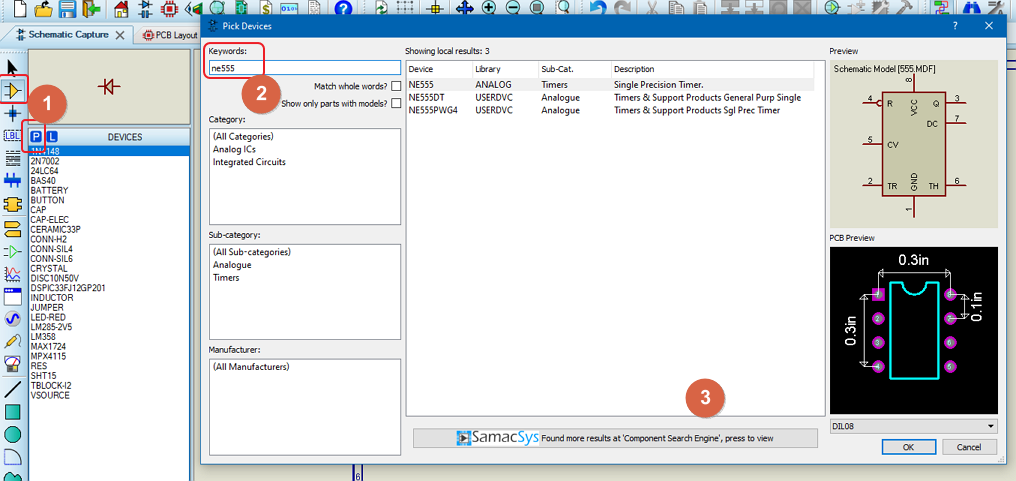
The Pick Devices dialogue form. First, launch the dialogue, then type the part and finally either select from local results or click to do a web search.
To search the libraries for a part using keywords
- Enter keywords that describe the part into the Keywords field. The search operates by matching the keywords against the parts' names, descriptions, categories and sub-categories.
- If the keywords result in a lot of matches, 741 for example will match many parts in the 74 TTL libraries, you can use the Category and Sub-Category fields to refine the search.
- Pick the parts you require by double clicking them in the Results list.
If the result you want is not in the installed libraries you can start a web search by clicking on the bar that appears at the bottom of the pick devices form. Users with a valid USC contract have access to over 15 million component parts and footprints, and to a free part creation service. More information is available here.
Parts downloaded from a third party vendor such as Ultra-Librarian, Samacsys or SnapEDA are brought in through a different route, the Library Menu > Import Parts command. See Universal Part Import for the full procedure.
To browse the libraries for a part by category and sub-category
- Ensure that the Keywords field is empty.
- Select the category for the type of part you are looking for. This will cause the Sub-Category and Manufacturer lists to show options appropriate for the chosen category.
- Select a sub-category and/or manufacturer to refine the search further.
- If you still have a large number of results, you can type in one or more keywords in order to further refine your search. Often this will be a part value or voltage. For example, a search for zener diodes will still produce a lot of results even with a specific category of Diodes, a sub-category of Zener and a manufacturer. Entering a voltage for the description will quickly refine the search to a small number of components.
- Pick the parts you require by double clicking them in the Results list.
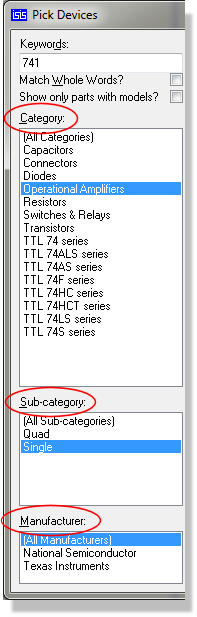
The Category, Sub-category and Manufacturer lists on the Pick Devices form, used to narrow a search
To browse a specific library (e.g. USERDVC)
- Ensure that the Library column is enabled. Right click on the results list area and select it from the resulting context menu.
- Prefix the partname or description with all or part of the library name. For example, typing User res 10k in the keywords field would restrict the search to the USERDVC library and return any 10k resistors in this library.
- Pick the parts you require by double clicking them in the Results list.
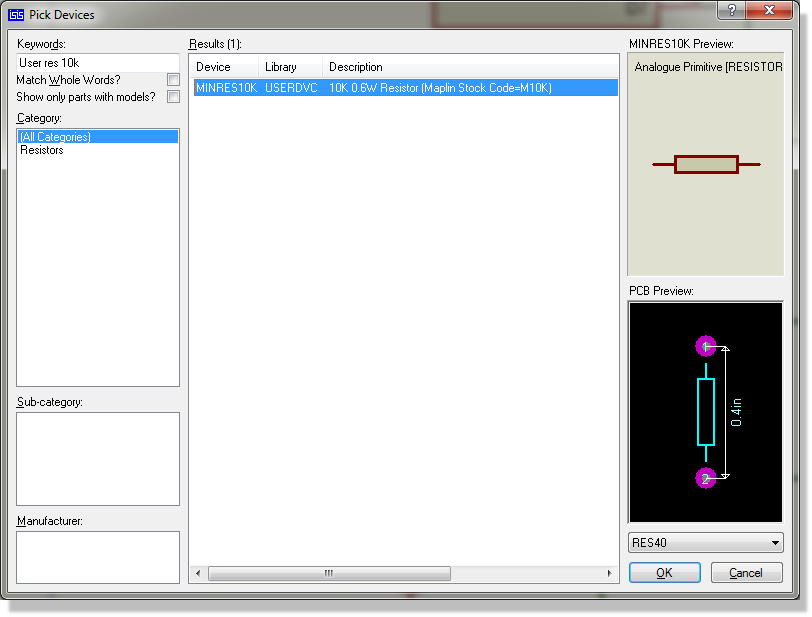
A search prefixed with the library name, returning the single matching part in USERDVC
To search for a part by stockcode
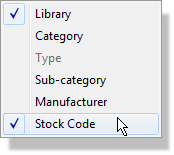
- Ensure that the Stock Code column is enabled. Right click on the results list area and select it from the resulting context menu.
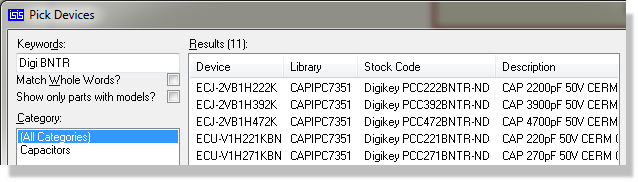
- Prefix the partname or description with all or part of the vendor name. For example, typing Digi BNTR in the keywords field would filter the search to Digikey stockcodes in the libraries and return any partial or exact matches. The pre-supplied libraries contain only Digikey stockcodes where appropriate although you may of course add other vendors to your own libraries.
- Pick the parts you require by double clicking them in the Results list.
The crucial point to understand is that only enabled columns in the results list are searched when you enter keywords. This means that in order to filter results in the keywords search you must first ensure that the relevant columns are enabled. To do this, simply right click in the results area of the dialogue form and select the columns you want from the resulting context menu.
Seven optional columns are offered:
- Library, the library the part was loaded from. Enabled by default.
- Category.
- Sub-category.
- Type. Available only where the pick form offers a type list.
- Manufacturer.
- Stock Code. Enabled by default.
- Date Modified, the date the library part was last written. This is the column to enable when two libraries hold a part of the same name and you need to see which of them the Pick command will load.
Your choice of columns is remembered between sessions.
Other points of note regarding the keyword search include:
- If you enter several keywords, they must all be matched against a part for that part to show in the results. In other words, it is implicitly an AND search.
- If a keyword is purely numeric, then it will be matched against just the digits contained in any part name. So 7400 will match 7400, 74LS00, 74HC00 and so on.
- If a keyword can be evaluated as a number, then it will be compared numerically against any part values found in the description. So 1500 will match 1k5 and vice versa. This means that you can enter res 2k2 in order to find 2k2 resistors, or zener 4.7 to find 4.7V zener diodes. Please note that you should not enter trailing units as in 4.7V, as this will disable the numeric matching function.
- If a keyword matches a part value exactly, then that part will be highlighted automatically in the results. This facilitates quick picking of parts whose name you already know. Pressing TAB and then ENTER will pick the part into the design and close the form.
- If a keyword contains the wildcard characters * or ?, then a wildcard based comparison will be made against the part name.
- Unless you check the Match whole words? checkbox, then partial matches are allowed, so RES will match RESISTOR and so on. This is useful in cases where a keyword gives a lot of false positives. For example, a search for or gates will turn up a lot of spurious matches because the pattern or appears in many phrases such as open collectOR.
You can resize and position the pick form as you like. Proteus saves the size and position when you close the form and restores them the next time you open it.
Libraries from earlier versions of Proteus
Existing user device libraries from versions of Proteus prior to 6.5 will not contain category and sub-category information. Parts from these libraries will appear under the Unspecified category, and the library names will be used for the sub-categories.
Please refer to Library Indexing for details of how to index your own libraries.
Updating the Schematic from the Libraries
If you pick a device or symbol that is already loaded into the schematic, Proteus will update it from the libraries on disk.
Note also:
- Where devices are concerned, the replacement algorithm will match pin positions or pin names, so connectivity will be maintained even if you move or renumber a device's pins.
- Where there are two or more devices or symbols with the same name spread across several libraries, the Pick command will load the newest one. This is particularly helpful if you have changed one of our parts and put it in USERDVC.LIB, since your version will be deemed newer than ours. Enable the Date Modified column if you want to see which copy is going to win.
See Also:
The Pick Devices dialogue form
See the section Basic Schematic Entry in the tutorial for details of how to pick parts using the library pick forms.