ANIMATION TIMESTEP CONTROL
Overview
The settings on the Animated Circuits Configuration dialogue, which is opened with the Set Animation Options command on the System menu, control how an interactive simulation evolves in real time. Frames per Second determines the number of times that the screen is refreshed per second, whilst Timestep per Frame determines by how much simulation is progressed during each frame. For real time operation, the timestep should be set to the reciprocal of the frame rate.
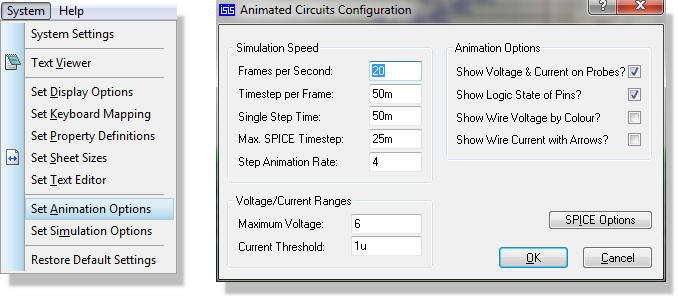
System Menu > Set Animation Options
The dialogue also carries a SPICE Options button. This opens a form titled Interactive Simulator Options, on which advanced users can adjust the simulator tolerances used for interactive simulation. The settings made there apply to interactive simulation only, and are separate from the defaults used by graph based simulation.
See Also:
Set Animation Options, for the individual fields of the dialogue.
Frames per Second
Normally, it is unnecessary to adjust the frame rate as the default value of 20 frames per second gives smooth animation without overburdening the (considerable) graphics performance of a modern PC. It is, however, occasionally useful to slow it right down when debugging the operation of animated compute models.
Timestep per Frame
The animation timestep can be used to make fast circuits run slowly, or slow circuits run quickly. For real time operation, the timestep should be set to the reciprocal of the frame rate, which at the default frame rate of 20 gives 50ms.
Of course, the entered timestep will always be a desired value. Achieving it is dependent on there being sufficient CPU power to compute the necessary simulation events within the time allocated to each frame. The CPU load figure displayed during animation represents the ratio of these two times. If insufficient CPU power is available, the CPU load will be 100%, and the achieved timestep per frame will drop off.
What the simulator protects in that situation is the frame rate: a frame which has not finished in the time available is cut short, so the display stays smooth and simulation time falls behind instead. If it has had to do this for a number of consecutive frames, the simulator writes the message "Simulation is not running in real time due to excessive CPU load." to the simulation log. This is not an error. It is telling you that simulation time is now advancing more slowly than the clock on the wall, which is usually the point at which you would consider a longer timestep per frame, a simpler circuit or a coarser Max. SPICE Timestep.
A step which cannot be completed at all is a different matter. The simulator allows a generous but finite time for one to finish, and if it is exceeded the simulation is abandoned and reported as a convergence failure.
Single Step Time
The Single Step Time is the time by which the simulation will advance when the Advance button on the Animation Control Panel is clicked. It defaults to 50ms, the same as the default timestep per frame. In logic circuits it is often useful to set it to half of the clock period, so that the effect of each clock transition can be observed.
Max. SPICE Timestep
Within a single animation frame the analogue simulator advances in a series of integration steps, and it chooses their size according to how quickly the circuit is changing. This setting places a ceiling on that choice, so that no one step can span more than the time given here.
The default is half the timestep per frame, which is 25ms with the default frame rate and timestep. Raising it allows the simulator to take longer strides and so run faster, at the cost of accuracy. Lowering it forces finer steps, which is slower but resolves fast detail more faithfully.
Step Animation Rate
This is the rate at which automatic single step debugging will progress. At the default value of 4, the system will step over four instructions per second when automated stepping is enabled with the Animated Single Step command (ALT+F11) on the Debug menu. It is not normally recommended that you change this value.