RESOURCE FILES & DATA STORAGE
Introduction
Visual Designer includes a very powerful yet simple storage model. This takes the form of resource files which can be added to the current project directly from the Project menu or via the context menu in the Project Tree. Resource files can be anything from a text file to a picture to an audio clip.
How it Works
It is very common to have a shield containing both an SD Card and other electronics for using the contents of the SD Card. Obvious examples include the TFT shield which can render pictures stored on the SD card and the Wave shield which can play WAV files stored on the SD Card. Like everything else in Visual Designer the process for working with these shields is fairly straightforward:
1) Add the shield containing the resource file (e.g. Wave shield, TFT Shield)
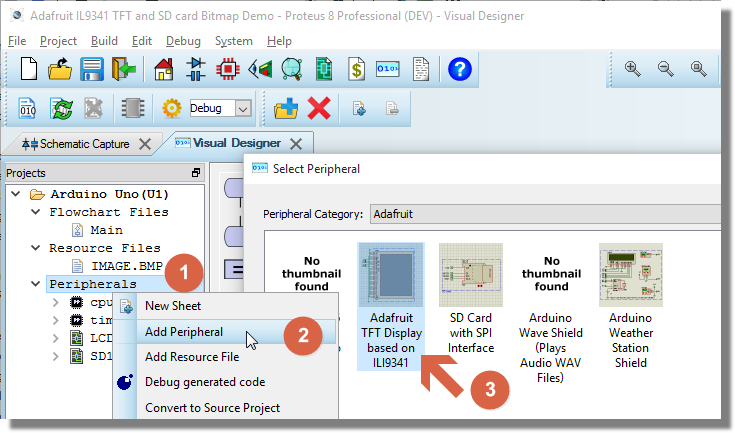
1, right click and on Peripherals, 2, Add Peripheral, 3, Select Peripheral.
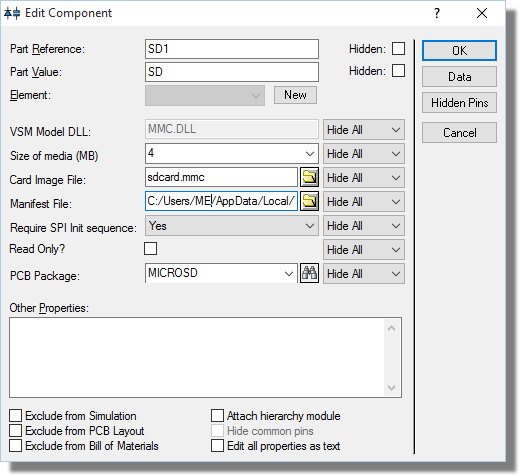
2) Check that the SD Card image size is big enough for your intended purposes. Clearly, the SD Card image size for wave files needs to be larger than that for pictures.
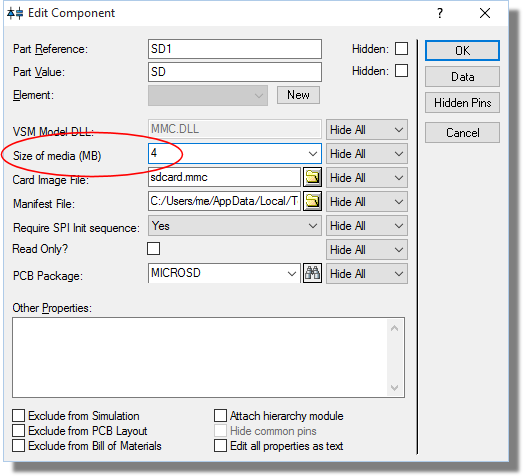
Change the size to cope with what you are loading. i.e. a WAV file will be larger than an image file.
In software, Proteus works some magic here and will create a FAT image for you of the correct size. If you are programming the real hardware you'll need to make sure you have a FAT16 or FAT32 SD Card of a suitable size in the SD Card slot of the shield before you hit the program button !
3) Add the resource file(s)
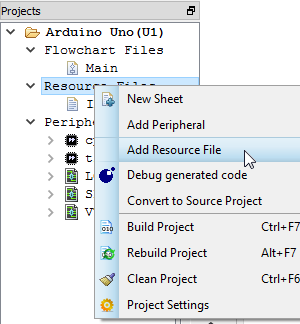
Be careful with the naming of resource files. The Arduino SD stack by default supports only 8.3 filenames in order to support FAT16 cards. This means that the namestem must be 8 characters or less and the extension must be 3 characters or less. For example, a picture called ProteusLogo.bmp will not load whereas renaming it to logo.bmp or image.bmp will work fine.
4) Drag and drop the resource file into your program. Visual Designer will automatically:
- Detect a destination IO routine for the resource (e.g. DrawBitmap() or Play())
- Set the source for the routine to be the resource.
See Also:
If you add a resource file there must be either an SD Card in an included shield or an SD Card breakout peripheral otherwise you have no place to store the resource in hardware !
The Filestore
Sometimes you just need to store and manipulate data in your program. The filestore gives you this capability. To use the filestore:
1) Add the resource(s). This is the data being stored (e.g. text file).
2) Add the SD Card peripheral. This is the filestore.
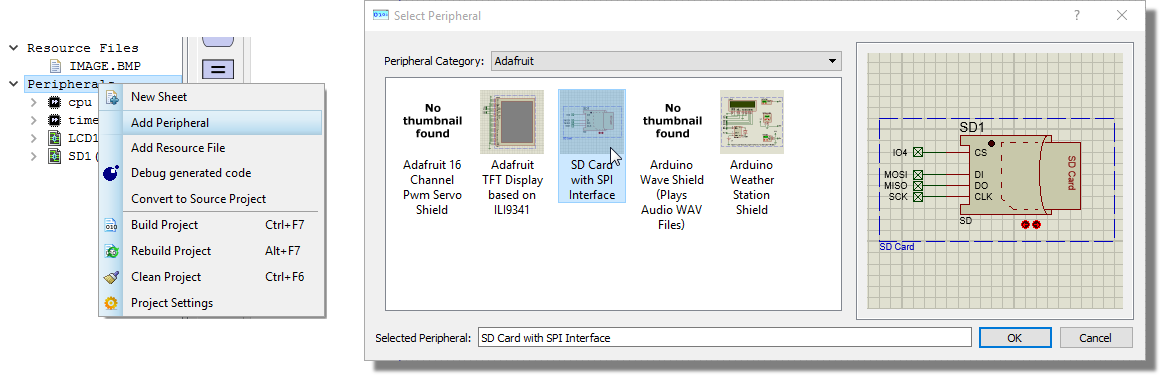
3) Use the methods on the filestore (storage data blocks) to open, read and otherwise manipulate the data in your program.
When you program the physical hardware the programmer will handle the transfer of the resources to the SD Card (as long as there is a suitable SD card in the hardware!).