Model Setup
Introduction
Before you can start using ProPilot or ProTutor, you will need to connect Proteus to a supported AI model. This step enables the assistant to process your queries and return intelligent responses. Once connected, you can begin asking questions, generating code, exploring your design, and more, all from within the Proteus environment.
If you are a student using ProTutor, this setup is typically handled for you by your institution. Your tutor or system administrator will have pre-configured access to an approved AI model, and all you need to do is open the chat window and start using the assistant. For professional users of ProPilot, you have full control over which model you use and how it is configured.
Choosing a Model
Proteus supports a range of AI models through both cloud-based and local access. The providers offered on the LLM Provider tab are:
- Anthropic (Claude)
- Open AI (ChatGPT)
- DeepSeek
- Google (Gemini)
- Moonshot (Kimi)
- Ollama (local)
- Custom
Availability may still vary in practice, since some providers are not reachable in all countries or may be blocked by your network policy. The Custom entry lets you point Proteus at any endpoint that presents an OpenAI-compatible API.
Your choice of model can depend on several factors.
Performance
Inevitably, the later the model the better the performance, and the speed of improvement is rapid.
Cost
Some providers offer free trial credit, while others charge from the outset. Choosing a provider with free access is a good way to explore the feature set without commitment. Check the provider's current pricing page for the rates that apply.
Privacy
Local models, for example those served by Ollama, allow full control over data, which may be important for sensitive or proprietary designs.
Availability
Some providers may not be accessible in all countries or may be restricted by your network policy or firewall configuration.
General Guidance
It is not our place to tell you which model is best, since this is a rapidly evolving space and what is best today may be outperformed tomorrow. However, several general principles are worth keeping in mind.
Reasoning varies between models
Larger and newer models tend to perform better on reasoning tasks such as design analysis, calculations, or schematic validation. Smaller models, particularly those hosted locally, may be less consistent or require more guidance.
Model size matters
There is a clear trade-off between capability and resource usage. Lightweight models are faster and easier to run locally, but they may miss subtle issues or provide less helpful advice. Larger models tend to offer stronger reasoning, especially for multi-step engineering tasks.
Later models are typically better
In nearly all cases, a newer generation shows measurable improvements in task accuracy, coherence, and ability to stay on topic. If your provider offers access to multiple generations, start with the latest.
Caching and throughput vary
Some models support response and context caching, which can reduce token costs over time. Rate limits also differ: one model might pause during a large schematic analysis while another completes it immediately. Check the documentation of your provider, especially if you are working with large designs.
Multimodal ability is an advantage
Models that handle structured input well, such as netlists, tables and datasheet content, often outperform those that are purely conversational. These capabilities may not be visible to you directly, but they matter when working with component data or simulation metadata.
Cost is not always a clear indicator of performance
Higher-cost models sometimes cache better or include priority access. Inexpensive models may nevertheless offer perfectly usable performance for many workflows. Compare the current published rates rather than assuming that dearer is better.
It is worth noting that AI models are improving at a rapid pace. Capabilities that were cutting-edge six months ago may now be considered baseline. As new versions are released and costs decrease, the best choice of model may change, and in many cases improve, without requiring changes to your workflow.
The Setup Process
Once you have chosen your preferred AI model provider, the next step is to link it with Proteus so the assistant can begin processing queries. Although each provider has a slightly different method for generating and managing API keys, the overall process is straightforward and largely the same across the board.
Open the EDAi Chat Window
Click the AI Assistant button on the main Proteus toolbar. This opens the chat panel on the left-hand side of the screen.

The AI Assistant button on the main Proteus toolbar.
Open the Settings Panel
In the chat panel, click the cog button in the top-right corner to open the ProPilot Configuration dialogue.
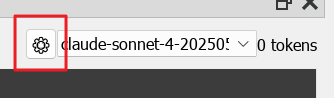
The cog button at the top right of the chat panel opens the configuration dialogue.
Select a Model Provider
Select the LLM Provider tab, then choose your preferred provider from the Provider dropdown. If the list appears limited, your installation may be restricted by policy or region.
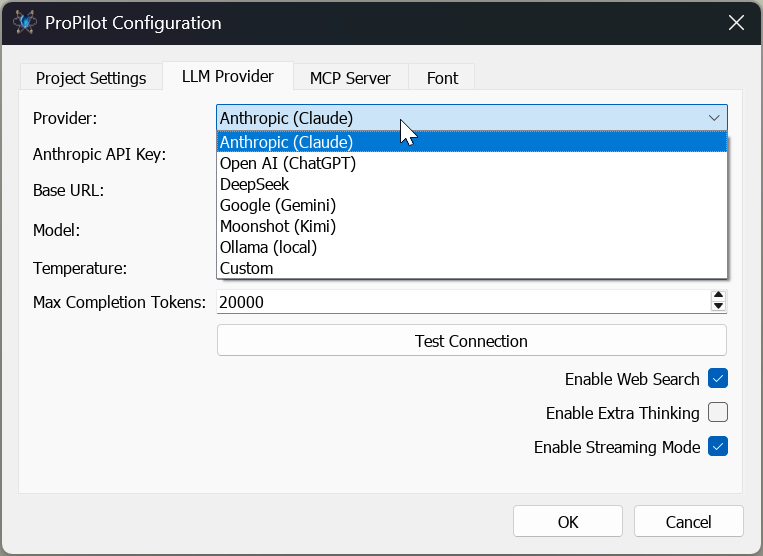
The LLM Provider tab of the ProPilot Configuration dialogue.
Visit the Website
Click the link beside your chosen provider to visit their website, sign up, and obtain an API key.
Note that this is NOT the same as a browser account. Most providers keep browser accounts and API keys on different websites. You need to sign up for the API key account.
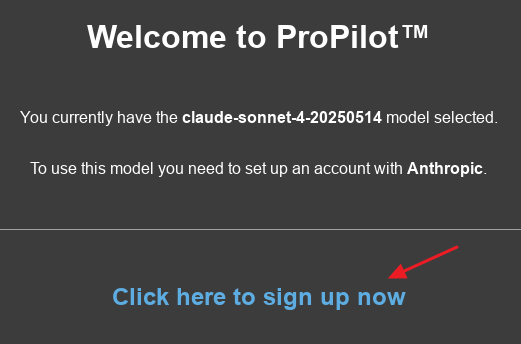
The sign-up link beside the selected provider opens the provider's API key page.
Paste Your API Key
Paste your API key into the API Key field. This key is obtained from your provider's website, typically in their developer or API dashboard. The field is masked, and the key is stored locally on your machine.
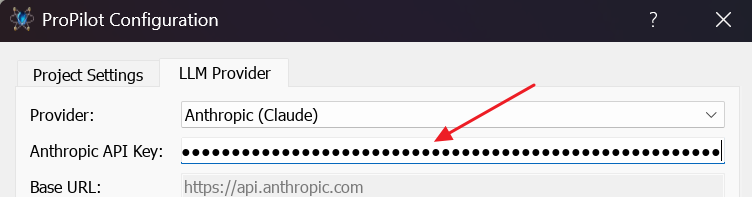
The API Key field with a key entered.
Choose a Model
Click Refresh beside the Model field to fetch the list of models available on your account, then select the one you want to use. The model list comes from the provider, so it reflects what that provider currently offers.
Test the Connection
Click Test Connection. If the test succeeds you will see a confirmation message; if it fails, the message reports what went wrong so that you can check the key, the model and your network connection.
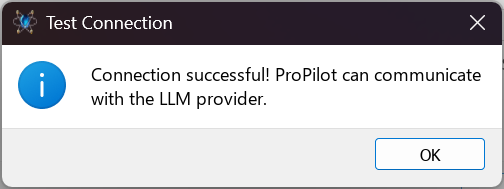
The confirmation message shown after a successful connection test.
Start Using the Assistant
Click OK to close the dialogue. You can now begin typing natural language questions into the chat box.
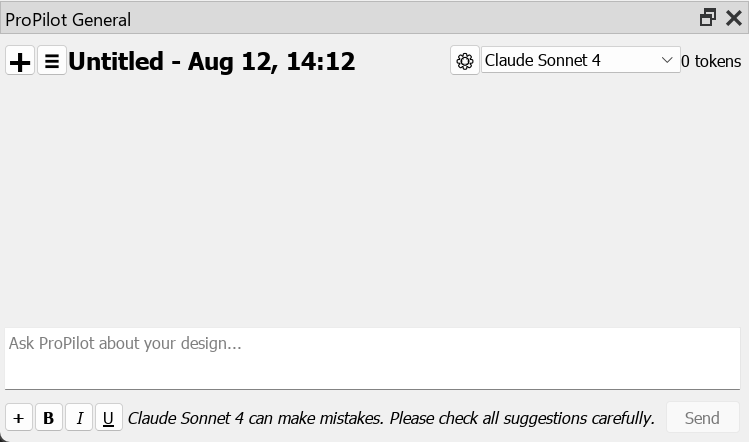
The chat box at the foot of the EDAi window, ready for a question.
Provider Capabilities
The options on the LLM Provider tab are not all available on every provider. Where a provider has no support for a feature, its checkbox is disabled and the setting has no effect. The table below shows what each provider offers.
| Provider | Web Search | Extra Thinking | Streaming | Model Refresh | Base URL |
| Anthropic (Claude) | Yes | Yes | Yes | Yes | Fixed |
| Open AI (ChatGPT) | Yes | Yes | Yes | Yes | Fixed |
| DeepSeek | No | No | No | Yes | Fixed |
| Google (Gemini) | No | No | No | Yes | Fixed |
| Moonshot (Kimi) | No | No | No | Yes | Editable |
| Ollama (local) | No | No | No | Yes | Editable |
| Custom | No | No | No | No | Editable |
Notes on Individual Providers
Moonshot (Kimi) labels its credential the Moonshot API Key. Its base URL is editable so that users in China can point Proteus at the corresponding .cn endpoint. Web search is not currently offered for this provider: the provider's own search facility is being reworked and does not complete reliably, so Proteus does not present it to the model. Extra thinking is not offered either, because the current Kimi models reason deeply by default.
Ollama (local) needs no API key. Its base URL points at your local Ollama instance and is editable so that you can move the server to another port or machine on your network.
Custom expects an OpenAI-compatible endpoint. You supply the base URL and, if the endpoint requires one, an API key. The model list cannot be fetched automatically, so type the model identifier into the Model field yourself.
Extra Thinking uses the model's deeper reasoning mode where available; the exact behaviour varies by model.
Model Management
Changing model is a user task. Proteus never switches your model for you, and that is deliberate: your choice of model determines what your provider charges you, so an automatic upgrade would change your costs without your consent. The consequence is worth stating plainly. If you configure a model once and never revisit the setting, you stay on that model indefinitely, however many better and cheaper options appear in the meantime.
The remedy is a habit rather than a feature. Every few months, open the settings dialogue, select the LLM Provider tab, click Refresh to pull the current model list from your provider, and decide for yourself whether something newer suits you better. It takes a few seconds and it is the only way a newer model reaches the list.
Providers do retire older models. If the model recorded in your settings is no longer offered, it will not appear in the refreshed list, and the Model field will show the first model in the list instead. That model is then saved when you click OK. After a provider retirement, therefore, check the Model field and choose deliberately rather than accepting whatever the dropdown happens to be showing.
Working from an External Chat Client
Proteus can also present itself as a local MCP server, so that a desktop chat application such as Claude Desktop or CherryStudio can drive Proteus directly. This is configured on the MCP Server tab of the same dialogue and is covered in its own topic.
See Also: