Connecting External Chat Clients (MCP)
Introduction
The integrated EDAi chat window is not the only way to work with an AI assistant in Proteus. Proteus can also present itself as a local MCP server, which allows a desktop chat application such as Claude Desktop or CherryStudio to drive Proteus directly. You then work in that application rather than in the ProPilot panel, and the assistant reaches into Proteus to read the schematic, run simulations, take measurements, edit firmware and drive the user interface.
MCP stands for Model Context Protocol, an open convention for connecting AI applications to external tools. Two points about it are worth understanding before you start.
- The chat application must run on the same machine as Proteus. The server listens on the local machine only, so an assistant running on another computer cannot reach it.
- The connection is driven by the chat application, not by Proteus. Proteus offers the tools; the assistant in the chat application decides when to call them.
Working over MCP is complementary to the built-in chat window rather than a replacement for it. The integrated window is quicker for day-to-day questions; an external client is the better choice when you want a long agentic session, a different model, or a workflow that spans several projects.
The MCP Server Tab
Everything on the Proteus side is configured on the MCP Server tab of the ProPilot Configuration dialogue. Open the chat panel, click the cog button, and select the MCP Server tab.
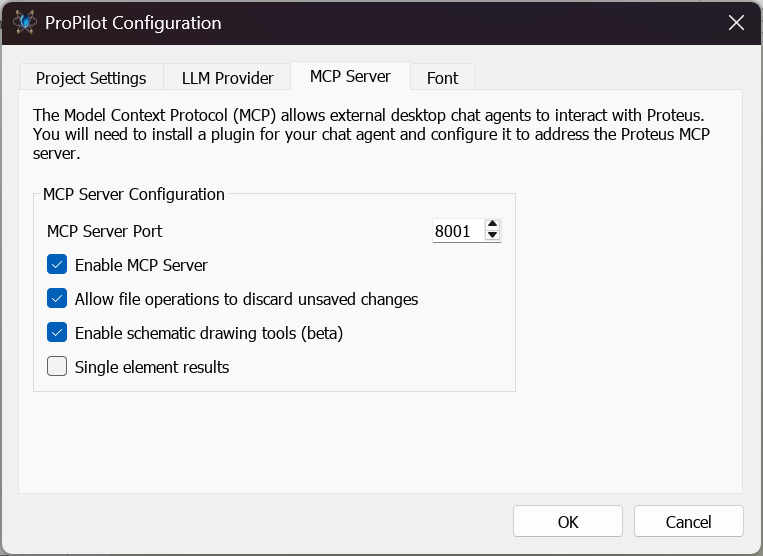
The MCP Server tab of the ProPilot Configuration dialogue, showing the server port, the Enable MCP Server checkbox, and the options for forced file operations, schematic drawing tools and single element results.
MCP Server Port
The port the server listens on. The default is 8001, and there is normally no reason to change it. If you do change it, the same port must be set in your chat client. Note that the setting is shared by every copy of Proteus running under your Windows account, so if you routinely run two instances at once only one of them can own a given port.
Enable MCP Server
Starts the server. This is off by default, so MCP access is something you opt into rather than something that is running quietly in the background. Clearing the checkbox stops the server again.
Allow file operations to discard unsaved changes
Off by default, and the safe setting. With this option off, the tools that open a project or close Proteus refuse to act while the current design has unsaved changes, and report the situation back to the assistant instead. The assistant can then save the design or ask you what to do, but it cannot throw away your work.
Turning the option on adds a force flag to those two tools, which lets the assistant discard unsaved changes deliberately. This is useful in an unattended batch workflow, where a modal save prompt would simply stall the session, but it does mean an agent can lose work that you have not saved.
Enable schematic drawing tools (beta)
Off by default. This exposes the experimental schematic drawing tools, which let an assistant place devices and terminals, route nets and edit the sheet. They are under active development and are not yet fully functional, which is why they are gated and labelled beta in the dialogue. The rest of the schematic toolkit, including probes, generators and graphs, is not affected by this setting and is available whether or not the option is ticked.
See Also:
Schematic Drawing Tools (beta)
Single element results
Off by default. This is a compatibility mode for chat clients that read only the first element of a tool result and silently discard the rest; CherryStudio is the client this was written for. With the option on, each result is collapsed into a single element so that nothing important is lost. The trade-off is that on results which return a picture, the accompanying text message is dropped. Leave the option off unless your client is visibly missing part of what Proteus sends back.
Connecting Claude Desktop
Claude Desktop is the reference client. It does not talk to an HTTP server directly, so Proteus ships a small extension that bridges the two.
- In Proteus, tick Enable MCP Server on the MCP Server tab and note the port. Click OK.
- Download and install the Claude Desktop application.
- In Claude Desktop, open your user settings from the bottom left and select Extensions.
- Install the extension file proteus-propilot.mcpb, which is in the Tools\MCP folder of your Proteus installation.
- When asked to configure the Proteus MCP port, enter the port set in Proteus. The default is 8001.
- Back on the Extensions screen, enable the Proteus extension.
- Approve the tools the extension provides. We recommend allowing them continuously, otherwise you will be asked to confirm every call.
- Quit and restart Claude Desktop.
The installation folder depends on how Proteus was installed. For a Me Only installation:
C:\Users\<USERNAME>\AppData\Local\Programs\Labcenter Electronics\Proteus 9 Professional\Tools\MCP\
For an All Users installation:
C:\Program Files\Labcenter Electronics\Proteus 9 Professional\Tools\MCP\
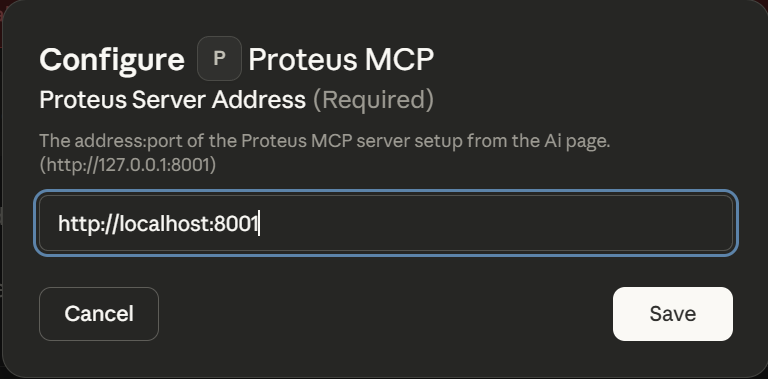
The port configuration prompt shown while installing the Proteus extension. The port must match the one set in Proteus.
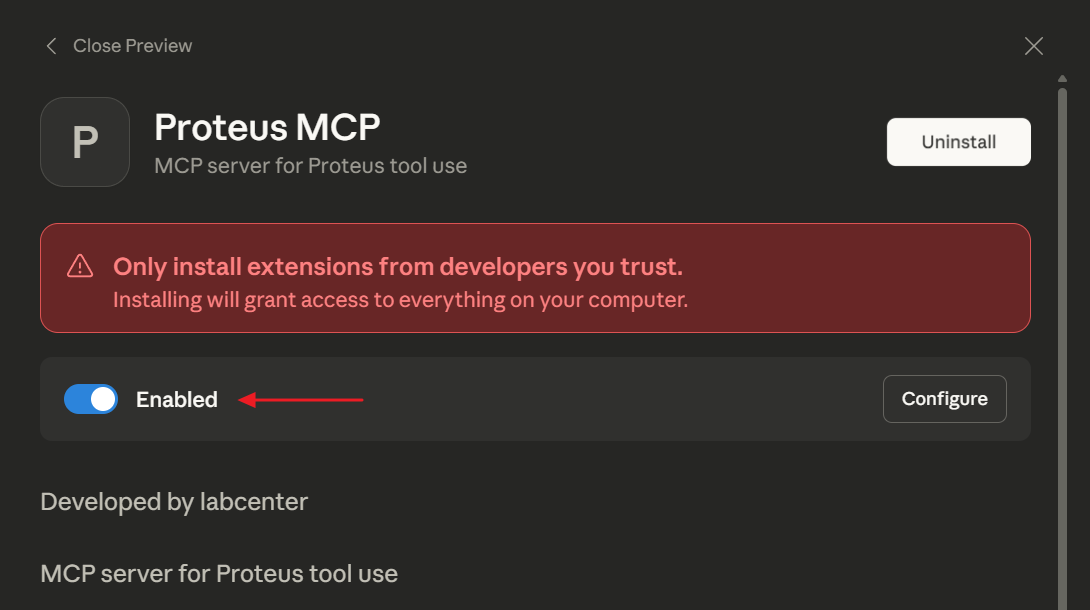
The Proteus extension enabled on the Claude Desktop Extensions screen.
To test the connection, open a project in Proteus and then ask the assistant whether it can see it. The Proteus tools also appear on the Search and Tools menu.
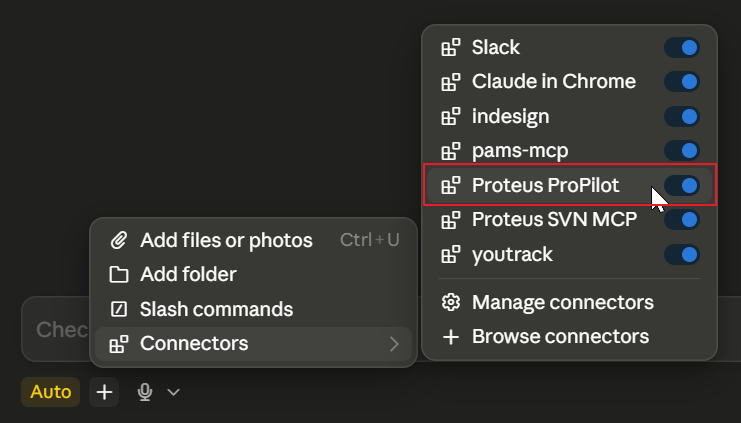
The Proteus tools listed on the Search and Tools menu.
The extension is a bridge rather than a copy of the server, and it keeps the connection alive across Proteus restarts. If you close and reopen Proteus in the middle of a conversation, the tools reappear on their own; you do not need to restart the chat application.
Connecting Other Clients
Clients that can address an HTTP MCP server directly, Cherry Studio among them, need no extension. Add a new MCP server in the client with the following settings:
- Type: Streamable HTTP
- URL: http://localhost:8001/mcp
Replace 8001 with the port set on the MCP Server tab if you have changed it. Proteus answers each request and closes the connection, so there is no streaming channel back from Proteus to the client and no session to re-establish.
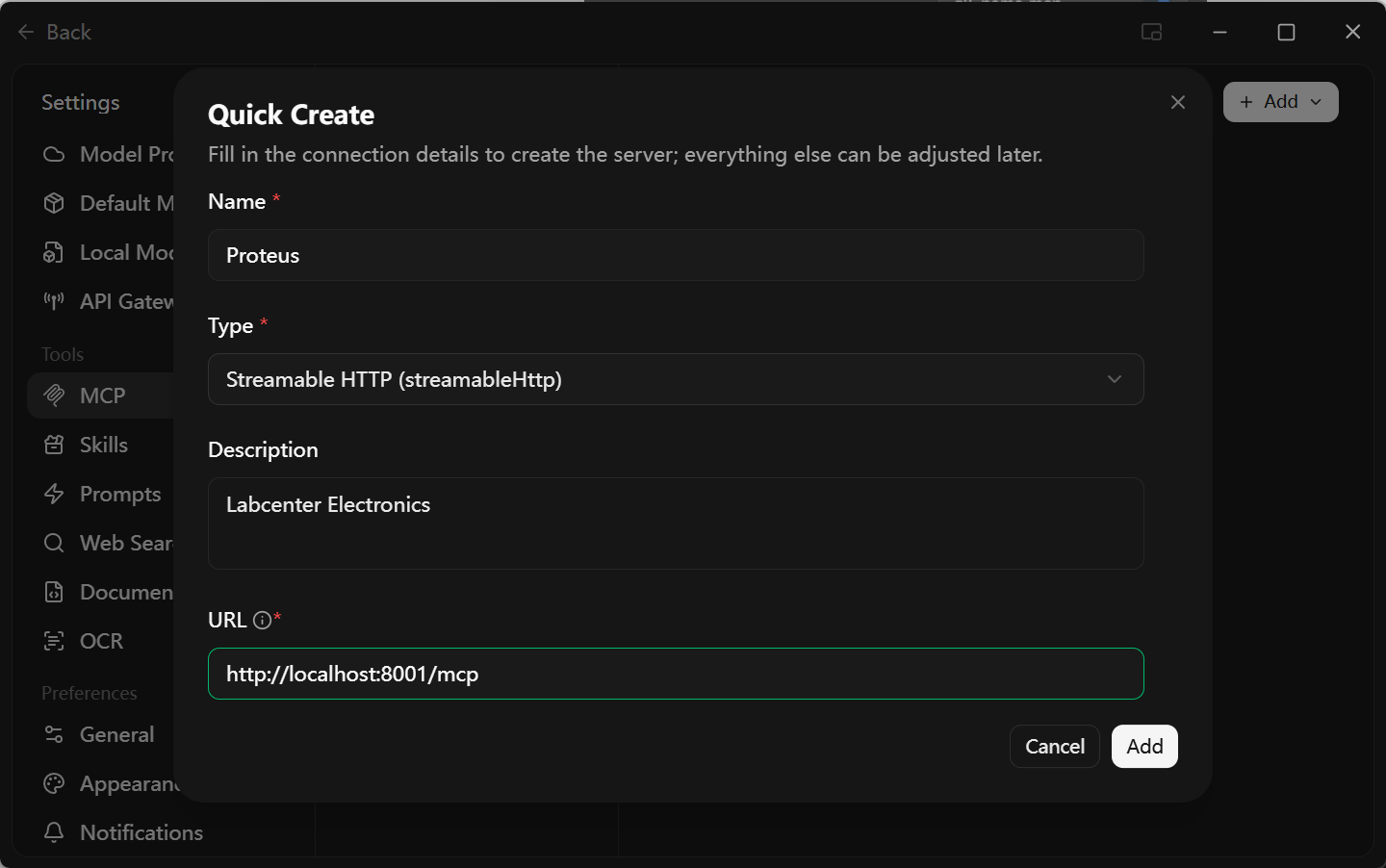
A CherryStudio MCP server configuration for Proteus, showing the Streamable HTTP transport type and the local URL.
Once the client has connected it will normally show the list of tools it has discovered. If you are using CherryStudio, also tick Single element results on the MCP Server tab.
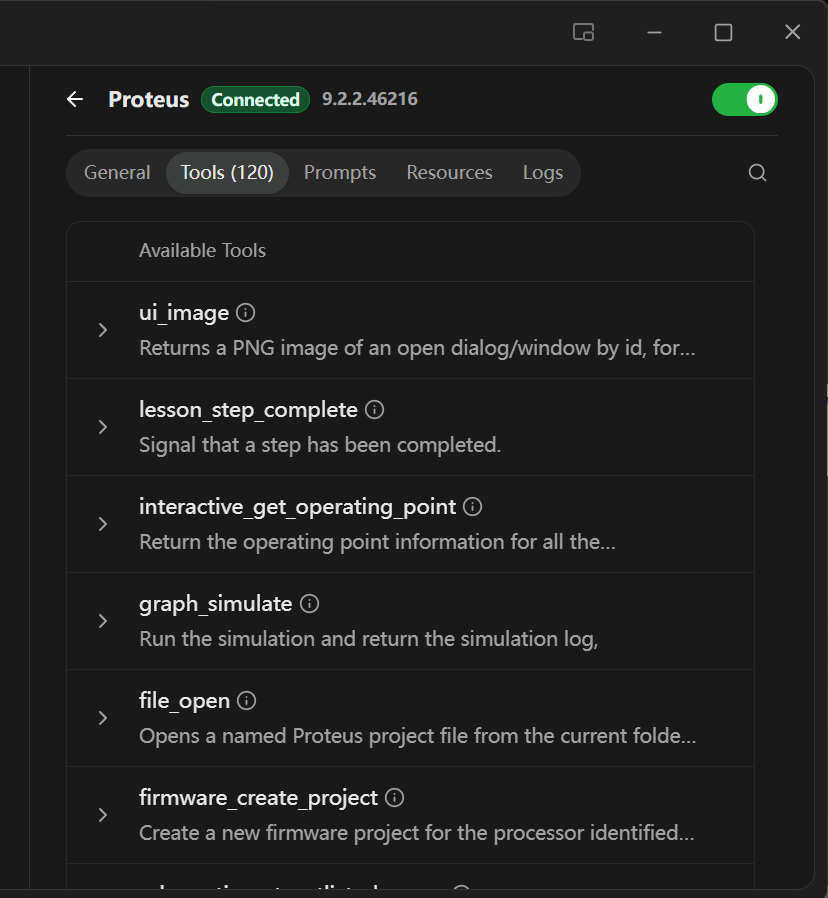
A connected MCP client showing the list of available Proteus tools.
What the Server Exposes
An external client sees the same capabilities that the built-in assistant has, with one exception, noted under External Batch Marking. They are organised into toolkits: the schematic, graph-based simulation, interactive simulation, firmware, library and lesson families. Each toolkit carries its own instructions describing how its tools fit together, which prerequisites apply and where the common mistakes lie.
Guidance of this kind is served as skills. The assistant lists what is available and reads the ones it needs, exactly as it would with any other skill library. Proteus ships eleven skills, covering the areas where the right procedure matters more than the individual tool calls:
| Skill | Covers |
| schematic-drawing | Placing and wiring parts on the sheet, and the transaction model that groups the edits. |
| bitmap-schematic-import | Working from a picture of a circuit towards a drawn schematic. |
| connectivity-analysis | Tracing nets and checking how the design is actually connected. |
| power-supply-analysis | Checking supply rails, decoupling and power distribution. |
| graph-measurement | Taking numeric measurements from simulation graphs. |
| conformance-testing | Storing reference results and running regression comparisons against them. |
| pdif-part-generation | Building library parts, symbols and footprints. |
| easyhdl-scripting | Writing EasyHDL scripts for scriptable generators and models. |
| log-reading | Reading the application log to work out what Proteus actually did. |
| ui-driving | Driving dialogues and menu commands, and answering modal prompts. |
| ui-recipes | Step-by-step procedures for common jobs that have to go through the user interface. |
An external client is additionally served a generated overview skill for a toolkit, assembled from that toolkit's own instructions. This is how an assistant working over MCP picks up the workflow for a family of tools it has not used before, and it is why the external tool list needs no separate step to unlock a toolkit.
Beyond the toolkits, an external client can also drive Proteus itself. It can list and describe open windows and dialogues, answer a modal prompt, capture a picture of a dialogue, set a control or click a button; it can list, describe and invoke the menu and toolbar commands that are currently in scope; and it can read the application log. Together these give an assistant a way through parts of Proteus that have no dedicated tool, and a way to recover when a dialogue is blocking progress.
A small set of project and file tools sits alongside all of this, and they are the ones an assistant reaches for first: get_project_status and get_current_status to find out what is open and what state it is in, file_list_folder and file_change_folder to move around the file system, and file_save, file_open and file_quit to work with projects. The last three are the tools governed by the unsaved-changes setting described above.
See Also:
Security
It is worth being clear about the security model, because it is simple and it matters.
The server listens on the local machine only. It cannot be reached from another computer, and no port needs to be opened on your router or firewall for it to work. Against that, there is no authentication: any program running on your machine can connect to the server while it is enabled, and the tools it can then call include opening and closing projects and driving the user interface.
The server also accepts cross-origin requests, so a web page open in a browser on the same machine can reach it as well, not only a desktop application you installed deliberately. That is a further reason to leave Enable MCP Server off when it is not in use.
In practice that is a reasonable trade for a single-user engineering workstation, and it is the same trust boundary as any other program you run. The controls available to you are the ones to use deliberately: leave Enable MCP Server off when you are not using it, and leave Allow file operations to discard unsaved changes off unless you specifically need it.
Troubleshooting
The client cannot connect
Check that Enable MCP Server is ticked, that the port in the client matches the port in Proteus, and that the client is running on the same machine.
If everything looks right, the most likely cause is that the port was already in use, in which case the server did not start. There is no dialogue to tell you this; the failure is reported in the application log instead. Look there for a message about failing to start the MCP server, and either free the port or choose a different one on both sides.
The tool list is empty, or the tools disappeared
Opening a project ends the current MCP session, and the set of available tools depends on what is open, so the client needs to fetch the tool list again afterwards. Claude Desktop does this automatically through the Proteus extension. A client connected directly over HTTP may need to be reconnected.
The tools available also depend on the project. The lesson tools, for example, appear only when the open project has Tutor Mode enabled, and the schematic drawing tools appear only when the beta option is ticked.
A tool reports that the design has unsaved changes
This is the safety behaviour described above, not a fault. Ask the assistant to save the design and try again, or save it yourself. If you need the assistant to be able to discard changes, tick Allow file operations to discard unsaved changes.
Results look truncated or a message is missing
Some clients read only the first element of a tool result. Tick Single element results on the MCP Server tab, which collapses each result into one element for that class of client.
The assistant reports that a dialogue is in the way
A modal dialogue in Proteus blocks most tools until it is answered. An assistant can inspect and answer the dialogue itself, so asking it to look at what is on screen and deal with it is usually enough. Otherwise, answer the dialogue in Proteus and ask the assistant to continue.
See Also: