Managed Libraries
Overview
Proteus includes quite comprehensive support for managed libraries throughout the software. Managed libraries largely restrict the user workflow to only parts from versioned libraries and they can also provide information about what version of parts are in use. As well as a general auditing ability the latter makes a design refresh, engineering change order or a part update decision easier since you can instantly tell whether the latest versions of parts are used in the project.
There are basically three ways to work with libraries in Proteus:
- Unmanaged mode, in which you use the supplied libraries, import parts at will and continue working with unversioned libraries.
- Library Versioning (managed mode), in which you create a managed set of libraries for use and release them with a manual version numbering system. Users work with managed libraries, and each part in the library carries the same version number.
- Repo Versioning (managed mode), in which you create a managed set of libraries and link them to a version control system such as Git or Subversion. Proteus integrates directly with these systems, so commit, update, revert and refresh operations can all be performed inside Library Manager. Each part in a repository-versioned library is individually tracked with the commit ID (hash or revision number) that last modified it.
Repo versioning enables small changes to large libraries to be accurately reflected in the versioning. If you update two parts and add a third in a library of 100 then only those 3 parts have the new commit hash. By contrast, library versioning is just a new version of the library and all parts in the library will pick up that version regardless of whether or not they have changed.
Managed mode itself is a system wide toggle, set from the checkbox at the top of the System Settings dialogue form. With it on, the whole of Proteus works from your managed libraries; with it off, nothing is restricted. Setting up and working with managed libraries is discussed in depth in the Library Manager help file, but the basic process is shown below.
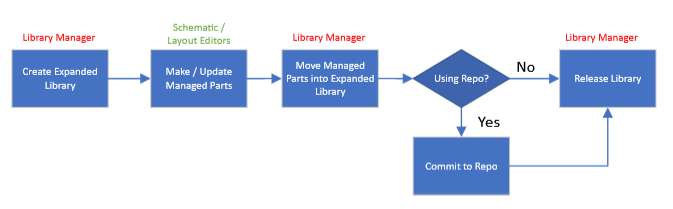
The managed library process, from creating and versioning the libraries through to reviewing the finished design
If you decide to work with Managed Libraries then you are deliberately restricting yourself to working with library parts supplied in the managed libraries. What you don't want to do then is make local changes to the parts, since that would largely defeat the purpose and would make a part update operation ambiguous. Managed Properties provide a way to make properties read only when placed. Managed properties are relevant only really to the schematic component rather than the PCB layout footprint, so they are covered in the Schematic Capture and Library Manager help files. Here we will note only that setting up managed properties is an important step if you want to work rigorously with managed library parts.
Managed Libraries in the Layout
Most of the managed library machinery lives in Library Manager and in the schematic. Three things, however, you meet in the layout module itself.
Picking parts
The Library Browser opens with its Show Only Managed parts checkbox already ticked, so any search returns only parts from your managed libraries, and web import from our part vendors is disabled. You can untick the checkbox to see everything, but that introduces unmanaged parts into the design.
Reviewing the board
The Manage Changes command on the Library menu is the reviewer's main tool. It compares the version of each package on the layout against the version held in the managed libraries, lists the differences and lets you accept them one at a time. Accepting a change replaces the contents of the managed properties with the library values as well as bringing across any physical change to the footprint.
Backing this up, the Pre-Production Check tests the finished design and fails if the layout still contains unmanaged library parts. That check is the gate that stops an unapproved footprint reaching manufacture.
Assembly variants
The managed workflows apply to the base design only. An assembly variant exists precisely in order to deviate from it, by substituting pin compatible alternatives or by fitting nothing at all, whereas Manage Changes works by restoring parts to the managed version. The two are incompatible, so the managed restrictions are not applied to variants.
Further Reading
To avoid duplication a full explanation of managed libraries and how to work with them is provided in the Library Manager help file and shown in tutorial videos.
See Also:
Managed Libraries (Library Manager Help File)
Managed Mode and the System Settings Toggle
Managed Libraries and Assembly Variants
Version Control Commands in Library Manager