SUB-CIRCUITS
Introduction
Sub-circuits are used to attach lower level sheets to higher level sheets in a hierarchical design. Each sub-circuit has a name that identifies the child sheet, and a circuit name that identifies the child circuit. On any given sheet, all the sub-sheets should have different sheet names, but may, and often will, have the same circuit names.
More information about hierarchical design is given in Hierarchical Designs.
Sub-circuits can also have property lists, and this leads to the possibility of parameterized circuits in which different instances of a given circuit can have different part values (or other properties) as well as independent annotations.
Further information about this powerful feature is given in Parameterized Circuits.
Placing Sub-Circuits
To place a sub-circuit box:
- Select the Sub-circuit icon from the Mode Selector Toolbar.
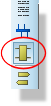
- Left click the mouse at the point in the editing window where you want to draw the sub-circuit outline.
- Move the mouse to define the size of the sub-circuit and then left click the mouse again to commit the shape and place the sub-circuit.
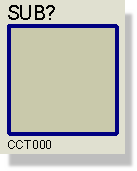
Placing Sub-Circuit Ports
A sub-circuit carries its connections on ports placed along its left and right edges. Seven port types are pre-loaded into the Object Selector: DEFAULT, INPUT, OUTPUT, BIDIR, POWER, GROUND and BUS. All seven behave identically as far as connectivity is concerned, so the choice is one of drawing convention, apart from BUS which you must use for a port that carries a bus.
To place sub-circuit ports:
- Select the Sub-circuit icon from the Mode Selector Toolbar.
- Choose the port type that you want from the Object Selector. Your choice here is dependent on the function of the port.
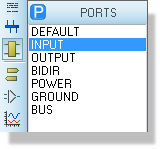
- Point where you want the port. This must be a point on the left or right edge of the sub-circuit to which you want to attach the port. The mouse cursor will change to the hot placement cursor to indicate legal points where you can place a port.
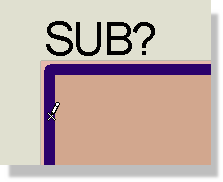
- Left click the mouse to place the port.
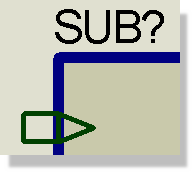
You can also add a port to an existing sub-circuit by right clicking on the sub-circuit and selecting Add Module Port from the context menu.
Having placed a port or ports, you must annotate them. Hierarchical design works by connecting the ports on the parent object with like named logical terminals on the child sheet. It follows that both the ports and the terminals must be given unique names. This can be achieved in a variety of ways:
- Edit the port label using any of the methods described in Editing an Object.
- Use the Property Assignment Tool to assign the NET property of one or more ports. This is especially effective if a group of ports have names which run in an alphanumeric sequence.
It is quite legal to connect buses to ports. In this case, the name for the port should generally define the range for the bus, as in D[0..7], although this is not mandatory. If no range is given, Proteus will use the range given for the bus section that connects to the port, or if that has no name or range then the width will be taken from whatever bus pins connect to the bus.
Placing a port without annotating it will be reported as a netlist error since such an object has no meaning and cannot be tied up with anything on the child sheet.
Information on naming sub-circuits and their general usage can be found in Hierarchical Designs.
Editing Sub-Circuits
A sub-circuit may be resized using the general procedure described in Resizing an Object and edited using any of the general editing techniques described in Editing an Object.
See Parameterized Circuits for further information on parameterized circuits.
See Edit Subcircuit for the controls on the sub-circuit dialogue form.
Sub-Circuit Properties
Sub-circuits have the following system properties:
| Property Name | Description |
|
NAME |
The sub-circuit instance name. This is also used as the name for the child sheet. |
|
CIRCUIT |
The name of the child circuit. If you do not assign this, Proteus will choose an automatic name when you first enter the child sheet. |
If any other property names are assigned, then these will create user properties in the sub-circuit's text block. Such properties then become sheet properties for the child sheet and may be used in property expressions.