AC SWEEP ANALYSIS
Overview
This type of analysis creates a family of frequency response curves for different values of a swept variable.
The main use for this graph type is in seeing how a particular component value affects the frequency response of your circuit.
Method of Computation
This analysis is computed exactly as an ordinary frequency response except that multiple runs are performed, one run for each value of the sweep variable.
The restriction of a linear circuit applies to this analysis as it does for a normal frequency analysis. See Frequency Analysis.
Using AC Sweep Graphs
As with Frequency analysis, the left and right axes display gain and phase respectively. Also, an input generator must be specified as a reference point for gain calculations.
The Edit AC Sweep Graph dialogue form carries two sets of controls, because there are two things being varied.
The frequency axis is set up exactly as it is for a frequency graph: Start frequency and Stop frequency give the range, Interval chooses DECADES, OCTAVES or LINEAR, and No. Steps/Interval sets the number of points computed within each interval.
The sweep is set up by Sweep var, which names the variable and defaults to X, together with Start value, Stop value and No. steps. One frequency response curve is produced for each value of the sweep variable, and because both extremes of the range are included there is one more curve than the number of steps.
To see the effect of altering a circuit parameter on frequency response:
- Set up the circuit as you would for a frequency
analysis.
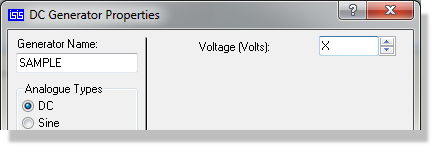
- Edit the components of interest. Set their properties to be expressions containing X, the swept variable. You can edit just one, or several components.
- Place an AC Sweep graph, and add the probes to it. See Adding Traces To A Graph.
- If you do not have a generator on the input already, then place one.
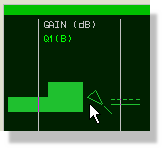
- Tag and drag a generator on the input of the circuit
onto the graph to be the reference generator.
- Edit the graph and set the frequency range, interval and step count for the response, then set the sweep variable and the range of values you want it stepped through.
- Press the space bar to invoke PROSPICE.
See Manual Y-Axis Configuration for information on defining y-axis limits.
See Also: