BILL OF MATERIALS
Overview
Proteus enables you to generate and configure a Bill of Materials report that lists all of the components used in the current design, along with their specified properties. A live display of the BOM is provided along with a data view which allows you to quickly assign values and add information to components on the design.
The Bill of Materials in Proteus 8 is a top level application module, meaning that it opens in a separate tab in the Proteus application . You can launch the Bill of Materials via the BOM icon on the main toolbar .

As with all top level modules you can choose to split the BOM into a separate frame. To do this, drag the tab into free space (e.g. a second monitor) or double click on the tab to auto-split the frames on a single monitor. This can be useful as the BOM display is a live representation of the schematic and will update automatically as you place and edit on the schematic frame.
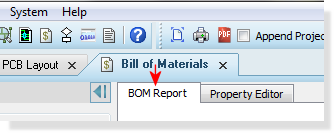
Assuming you have a schematic loaded you will see an HTML view of the BOM contents for the schematic when you launch the Bill of Materials module. The left hand side contains configuration and output options for BOM while the main display is switchable between the live HTML view and property editing mode.
If you are happy with the default information then you can simply generate the report. If you want to supply more information or want the report to be styled different then you will need to edit the BOM.
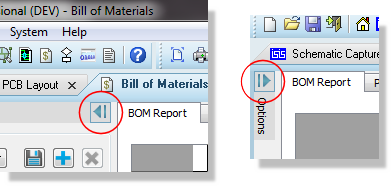
You may find it useful when not editing to hide the left hand pane in the BOM module (particularly with a landscape BOM report). You can do this via the slide icon at the very top of that pane.
In addition to this help document you can watch a full tutorial movie on the Bill of Materials via this link
Editing
The Bill of Materials in Proteus is as flexible as you need it to be. Editing typically takes one of two forms; either you want to change the data being displayed or you want to change the look and style of the report itself.
Data Editing
Adding information to the report (cost, RoHS, supplier, etc.) is a fairly simply process via the Bill of Materials module. You can also restructure the contents of the report into logical groupings of your choice.
- If you want the BOM report to contain more information then you need to first add a field and then assign data to the components.
- If you want to restructure the groupings in the report then you need to edit the categories.
Style Editing
Since PDF is the primary presentation format you may want to change the look of the BOM report to be consistent with the rest of your corporate documentation. The output formats are all generated from the live view, meaning that you can achieve almost any look you want by editing the stylesheet.
We recommend you review the many practical examples of common use scenarios for both BOM contents and BOM styling.
Saving and Loading
The Bill of Materials module supports user templates which allow you to save and load your own configurations. The templates contain:
- All styling and presentation information.
- Display and ordering of categories.
- Display of BOM fields.
While the template will save the displayed fields remember that the data that populates the fields comes from the schematic. If you re-use a template in a future design you are likely to have to add information for components in the new design. The easiest way to do this is via the Property Editor
Saving a template
Unless you have simply generated the report without modification you are likely to want to save any configuration changes for use in future projects. Using the Save Button at the top left of the of the BOM module will save the changes in the current template
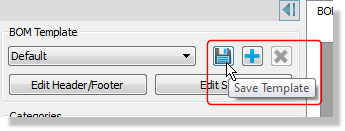
By contrast, using the Save As button will allow you to save changes under a different template name which can then be selected from the combo box in future designs
The Default template is always loaded for a new project, although if you change this it will persist for the current project. It follows that if you are working with only one template you should save your configuration as Default so that it will apply automatically when you start a new project
Loading a template
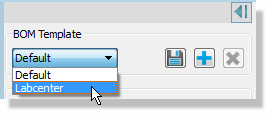
If you want to load a different template for the current project you simply select the one you want from the combo box at the top of the BOM module.