SAVING & LOADING TEMPLATES
Saving Templates
Invoking the 'Save layout as Template' command on the Technology Menu will save the current board skeleton and technology data on the current layout as a Template for re-use in future designs.
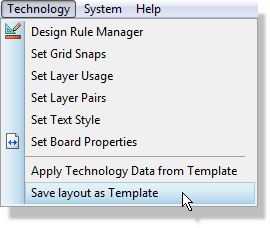
Saving the layout as a template
The template is always given the extension .LTF, and the file selector opens on the first of the template paths configured for Proteus. That is where the New Project wizard looks, so a template saved anywhere else will not be offered when you start a new design.
What is and is not saved
The board skeleton is saved: the board edge, 2D graphics, loose pads such as mounting holes, dimensions, zone boundaries and any components you have placed. Tracking, vias, teardrops, the ratsnest and the copper generated inside a zone are not saved, and are quietly dropped as the template is written. There is therefore no need to unroute a board before saving it as a template.
What does remain is anything else on the layout, and that may not be what you want. You may wish to use the board edge and mounting holes but not the components, which are specific to the current layout. You can easily strip such objects from the layout using the selection filter before saving as a template.
Saving a template that contains components can cause problems. When initialising from that template you must re-annotate any of the components on the layout to match the annotation of their equivalent schematic parts.
Stitching vias need no special handling. They are vias, so they are never written into a template in the first place.
A couple of examples of removing items from a layout before saving the template are outlined below.
To delete all components and zones from the layout
- Draw a tagbox around the entire board.
- Adjust the selection filter to include only loose pads (mounting holes) and graphics.

- Hit the delete button
- Remove any other unwanted graphics.
To save only the board edge
- Draw a tagbox around the entire board.
- Select all object types except 2D graphics from the selection filter

- Hit the delete button
- Remove other unwanted 2D Graphics.
Saving Technology Data requires the saving of a template. If this is all you want to store you can simply delete the entire board before invoking the save command.
Loading Templates
When you create a new project you are presented with the option to initialise the layout from one of the Templates.
You cannot load a Template into an existing project as the board edge, location of graphics objects etc. will almost certainly be different. Instead, you can apply the Technology Data from an existing template into a current design via the Apply Technology Data from Template command on the Technology Menu.
More information on Applying Technology Data can be found here.